How do I provision a Grandstream WP82x series Wi-Fi IP phone?
Getting the IP address:
First, you'll need the IP address of your phone. This can be done once the WP82x is connected to Wi-Fi, and then following the steps below:
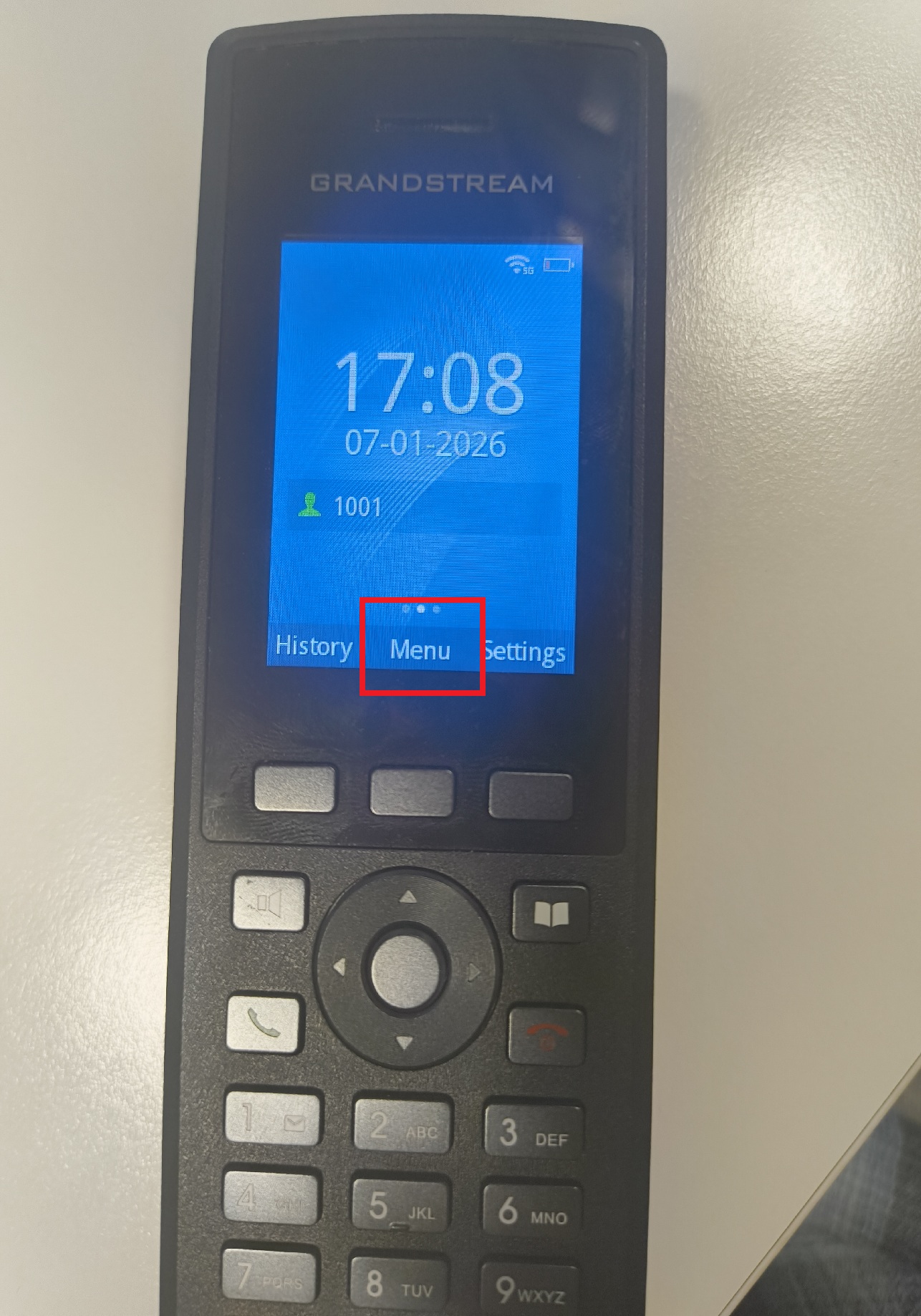
1. Navigate to the handset's Menu
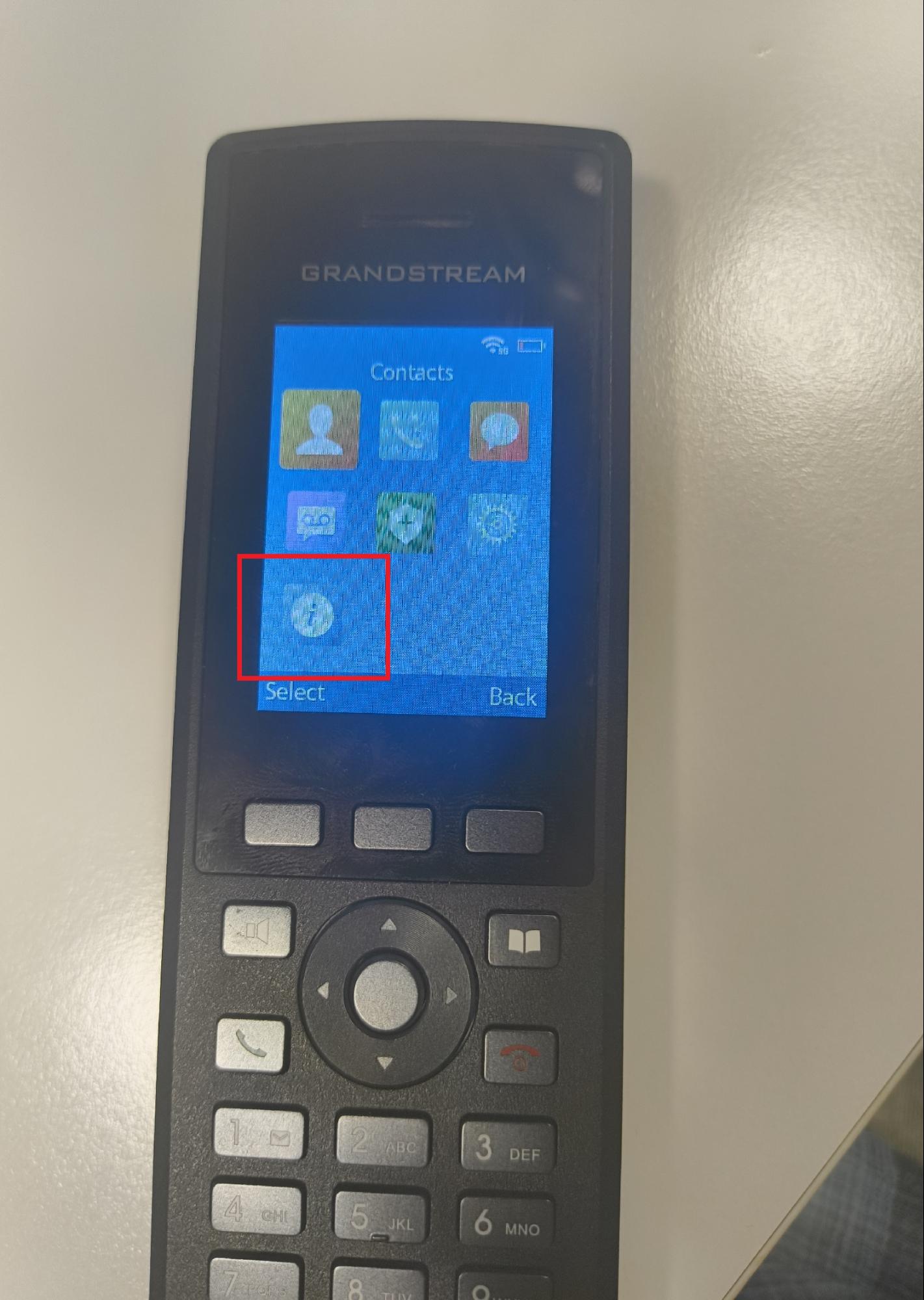
2. Then head to Status in the bottom left
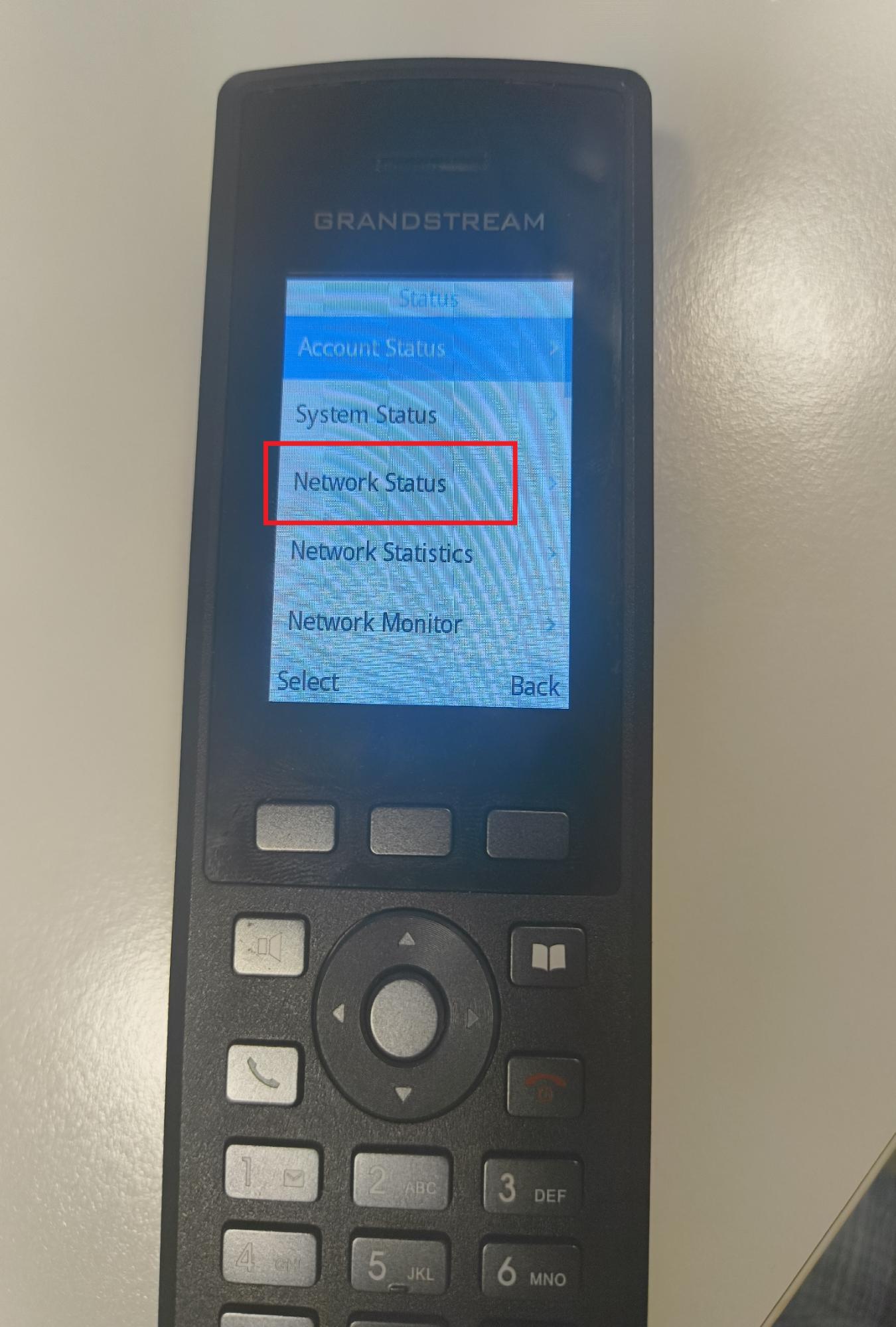
3. Then select Network Status
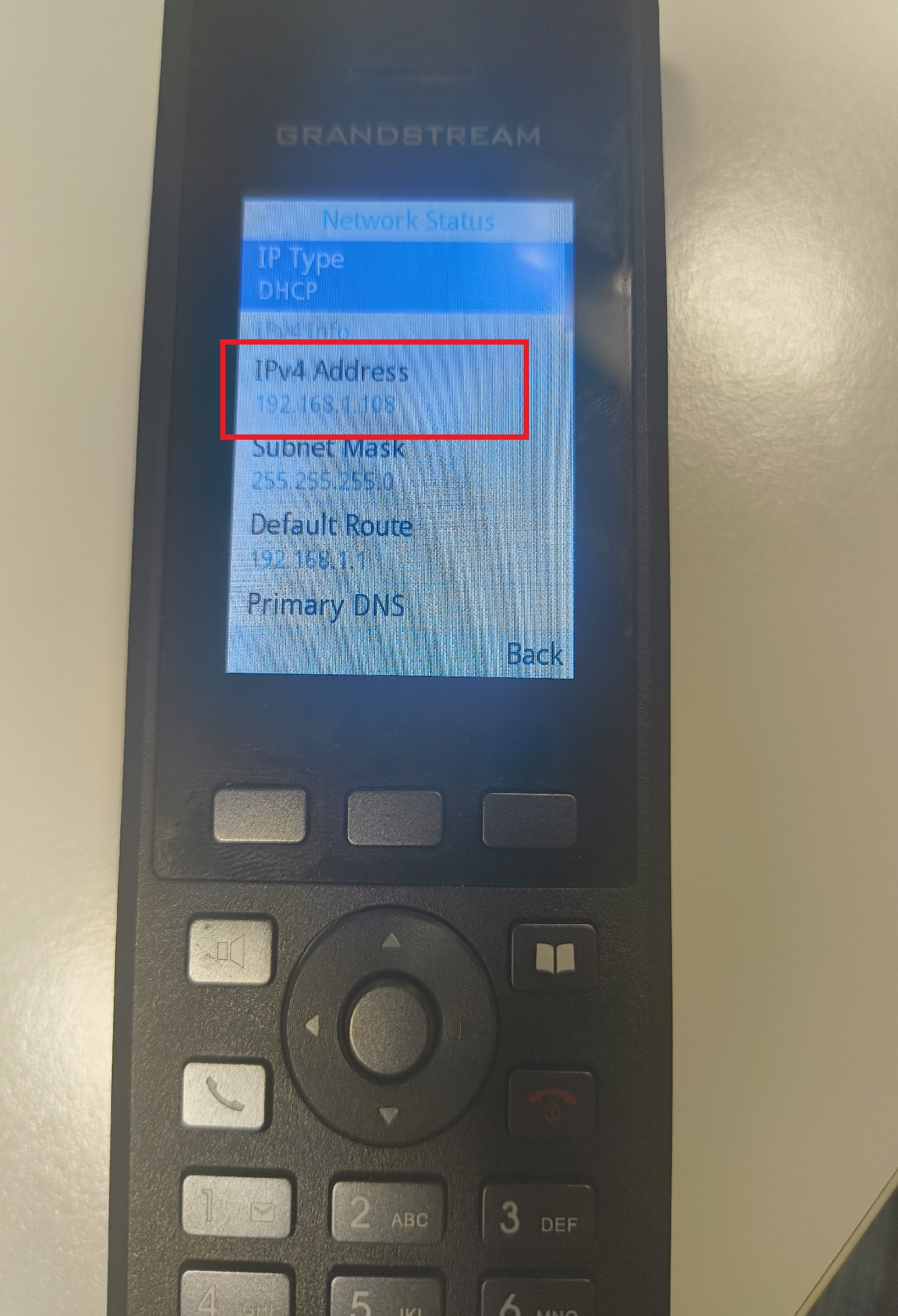
4. Then finally you can see the IPv4 Address
Provisioning the handset:
Once you have this, type it into your browser and the GUI will appear.
You will need your <SIP_Username>, <SIP_Password> and host <talk.yay.com>.
This information can be found in your dashboard under Voice > Users.
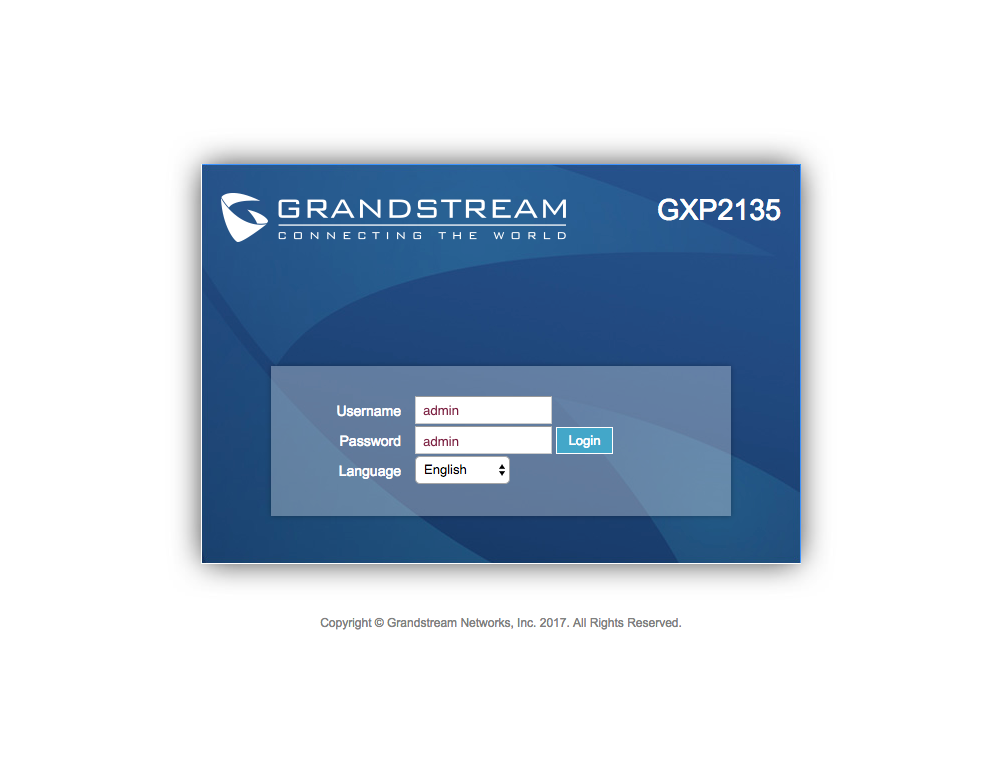
1. Login to the web interface using the details 'admin'
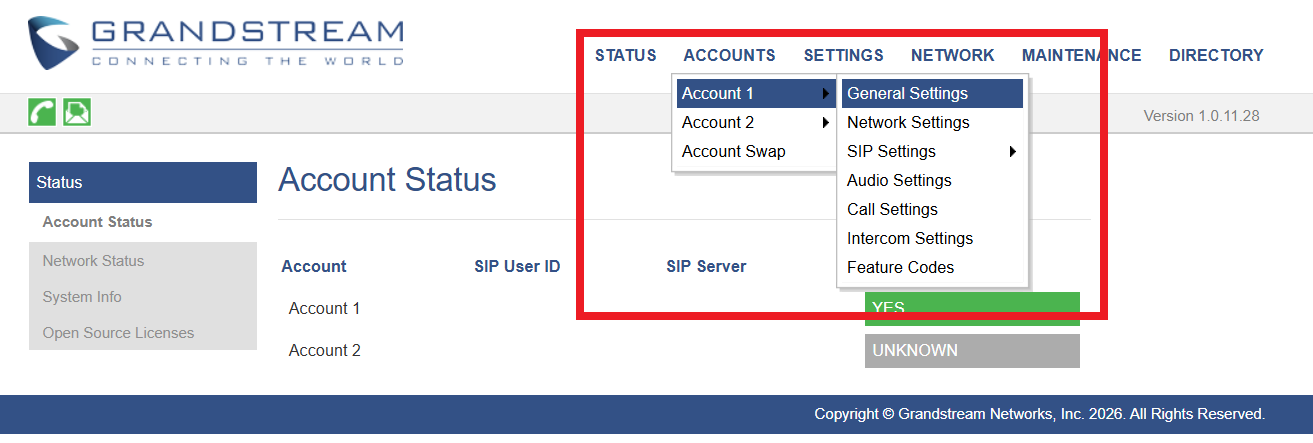
2. Navigate to Accounts > Account 1 > General Settings
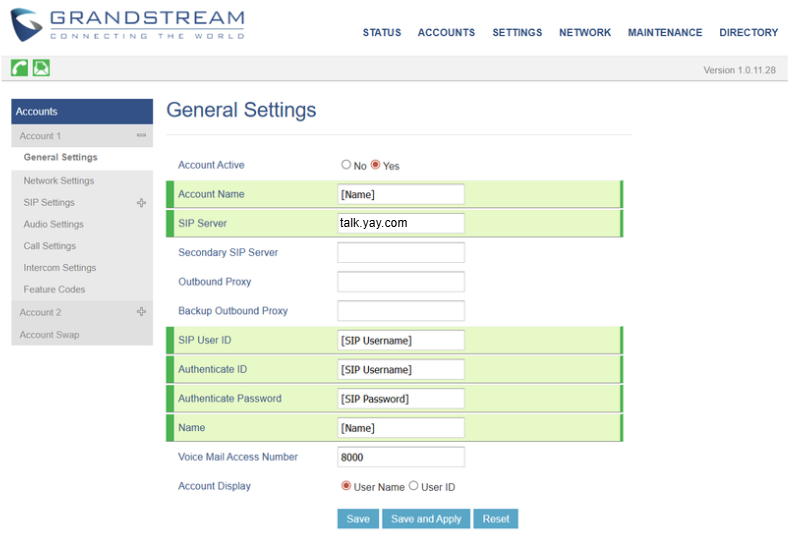
3. Enter your SIP details here. This is also the page to revisit if you ever want to modify them, but do note that the password won't be displayed for security reasons (it will look like a blank box). Remember to Save and Apply.
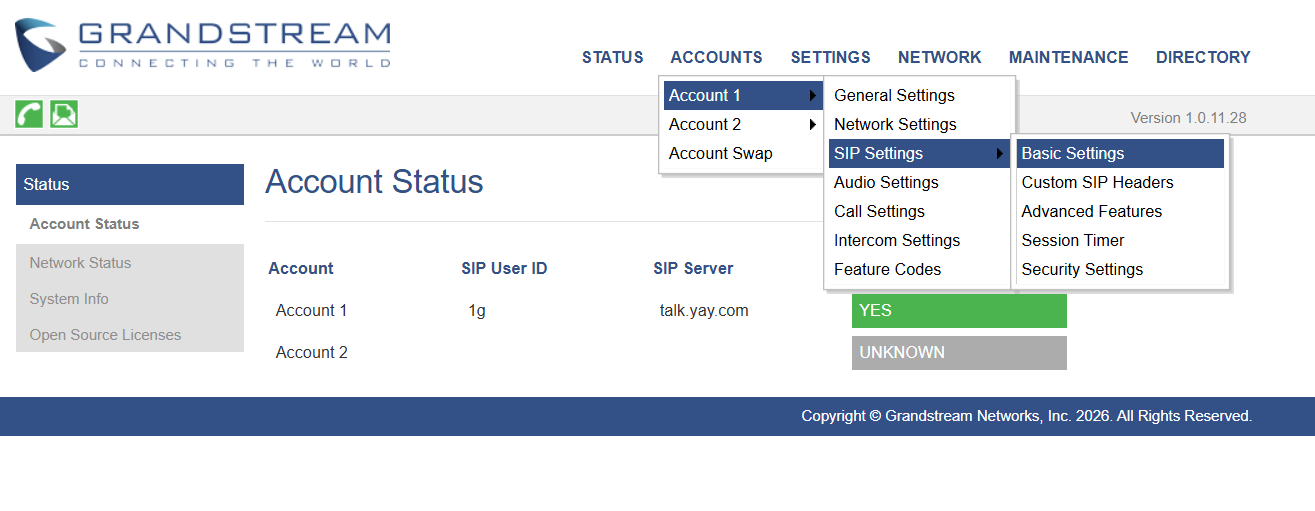
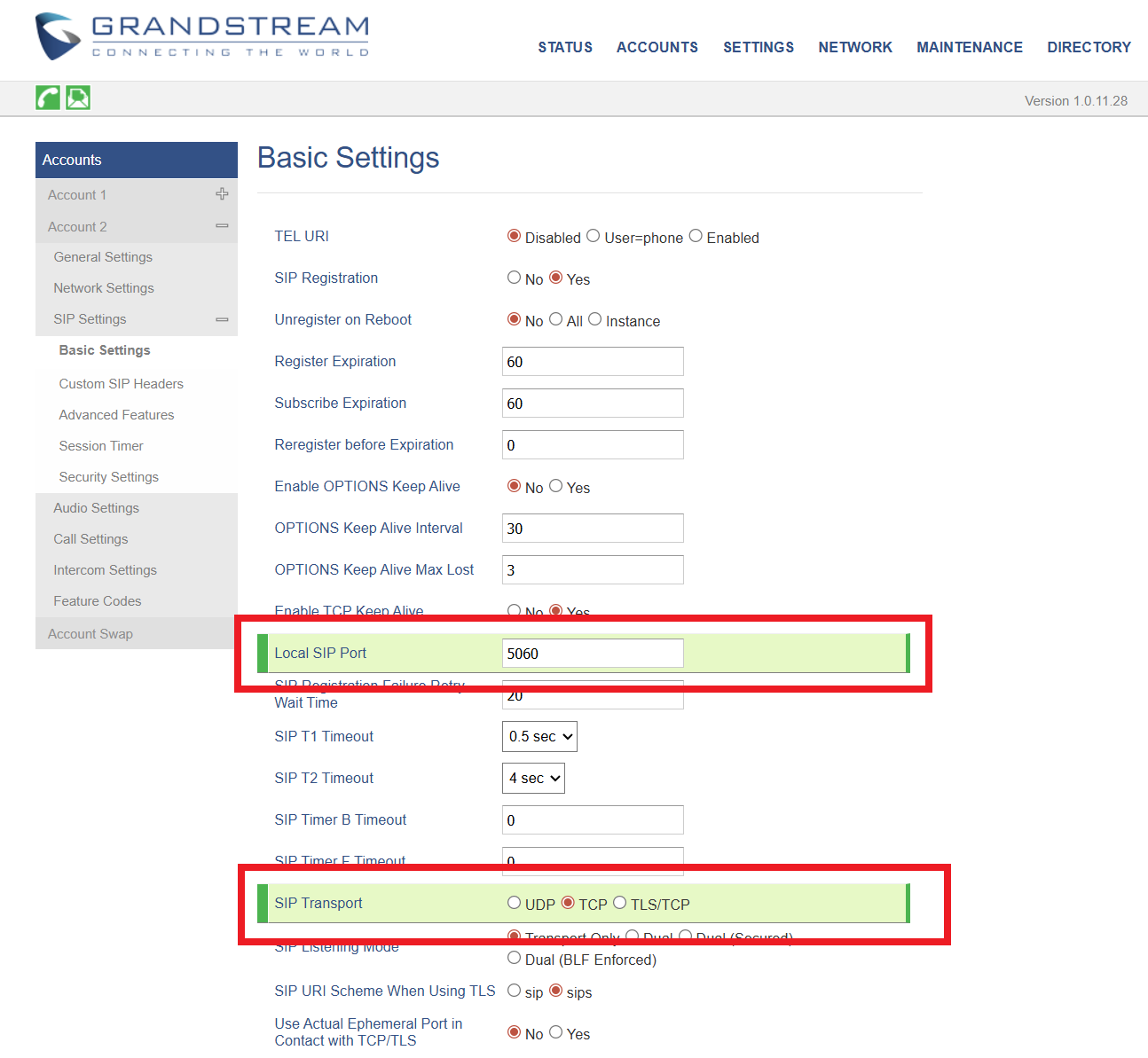
4. Your device should now be provisioned to Yay.com! Grandstreams also need to NOT be using the transport type UDP. Head to Accounts > Account 1 > SIP Settings > Basic Settings
5. Ensure settings are as below, where Local SIP Port is set to 5060, and SIP Transport is set to TCP. Then Save and Apply
Your device should now be connected to the SIP user on Yay.com, and be able to make and receive calls!