Why isn't my Grandstream WP820 provisioning?
If you find that your Grandstream WP820 just isn’t provisioning, and you think you’ve tried everything, please try this!
If your WP820 wasn’t purchased through us, please contact our friendly support team to ensure that your device is added to GAPS. If the device was bought through us, then follow the steps below.
1. In the Yay.com dashboard, please go to Voice > Config > Hardware, and assign the device to a User. Then please factory reset the device, and once it has loaded back up, enter your WIFI credentials to get internet access.
2. Find the local IP address of the device, and paste it into your browser URL (the browser must be connected to the same network as the device). This will take you to the web interface login page. The Username and Password should both be ‘admin’ (without the quotation marks).
3. Navigate to System Settings > Security Settings > Encryption Settings > CA Signature Algorithm, and then change this to be md5WithRSAEncryption:
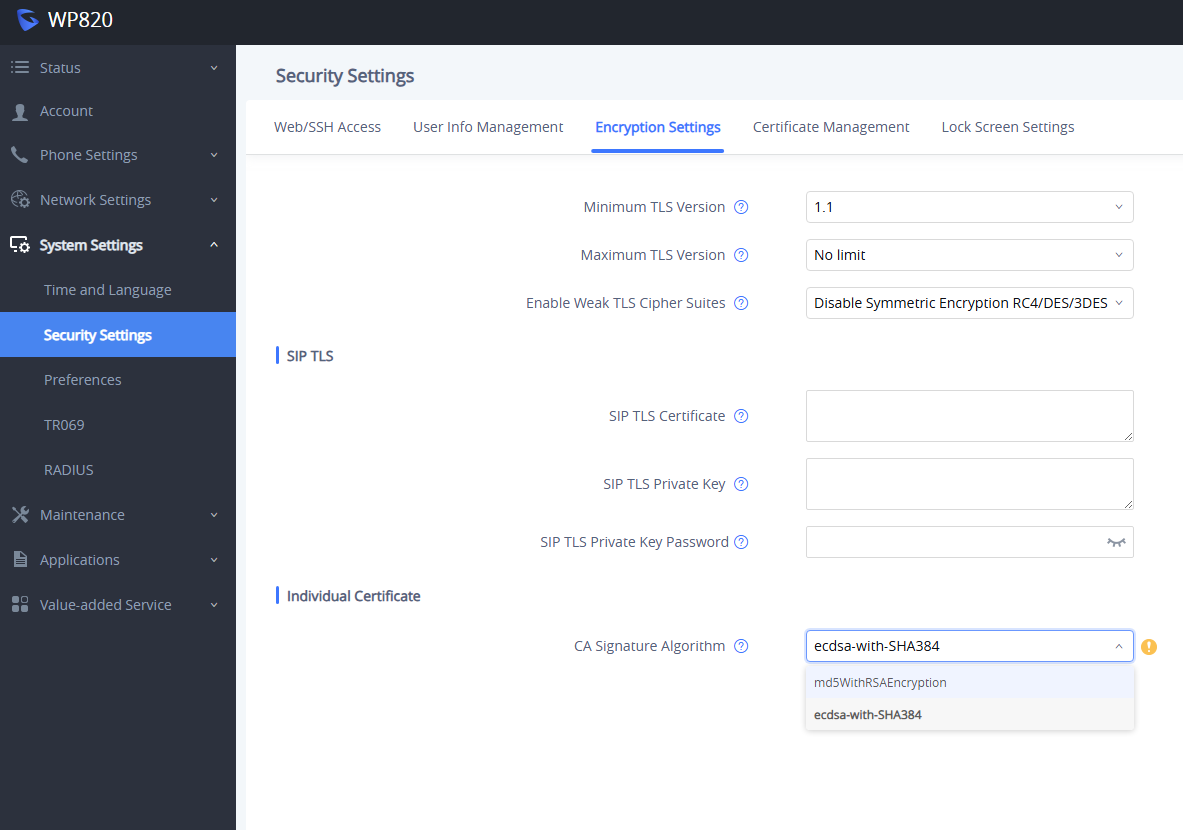
4. The Web Interface will ask you to reboot the device, so do a complete reboot and wait for the device to come back online.
Please note then by doing this, the admin password may reset back to ‘admin’ if you have changed it previously. Once the device loads back up, you should see that the User’s SIP details are now under the device (Account > General settings).
5. If the device still isn’t online, please change the Transport Type of the User on the Web interface via Account > SIP Settings > SIP Transport. Change it to either TCP or UDP, hit Apply, and that should bring the device online!
If you have any questions about this, please don’t hesitate to contact our friendly Support Team on 0330 122 6000, or by emailing help@yay.com.