How do I configure BLF keys for a handset?
A BLF (Busy Lamp Field) is a light, or LED with buttons on an IP phone that indicates whether another extension or phone is available, ringing or busy. This is a useful feature for busy office environments, remote workers or receptionists who need to swiftly see when colleagues may be available on the phone, without the need to physically visit their desk.
This article covers how BLF keys can be configured using the Yay Dashboard and the app. BLF keys can also be configured on a handset directly or by uploading an Advanced Config file which will not be covered in this article.
(A) Setting up BLF keys for individual Users
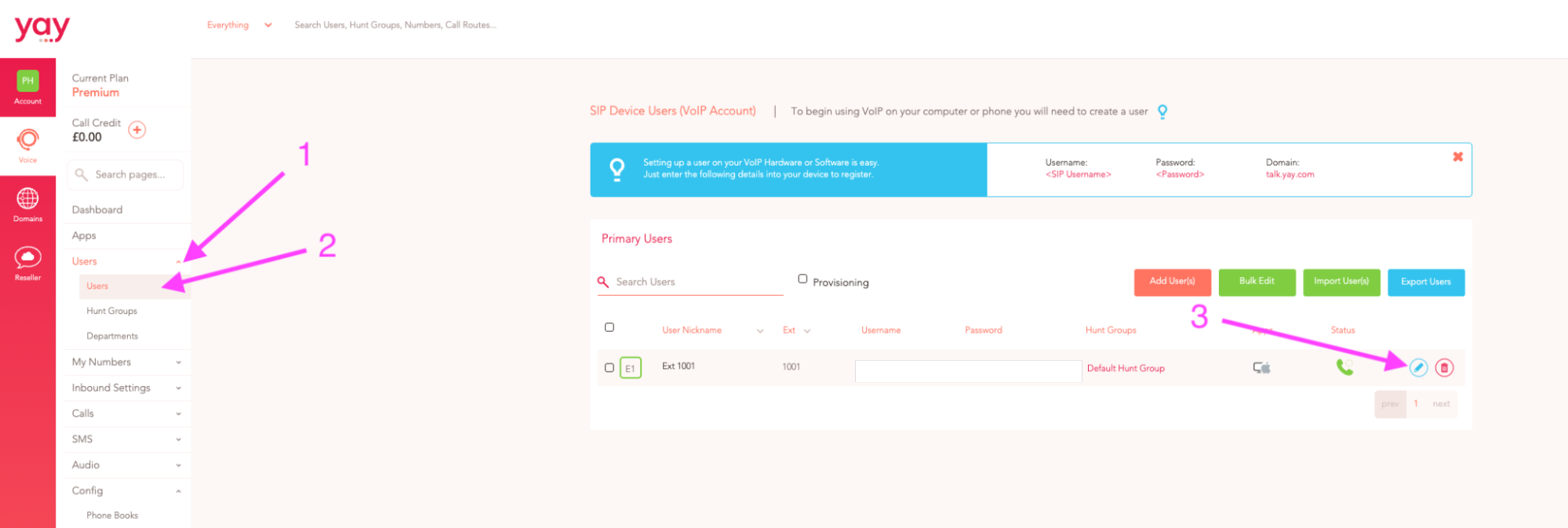
1. Click on the Voice option to the far-left
2. Go to Users
3. Then click the blue Edit button (blue pencil), next to the User you wish to set the BLF keys for.
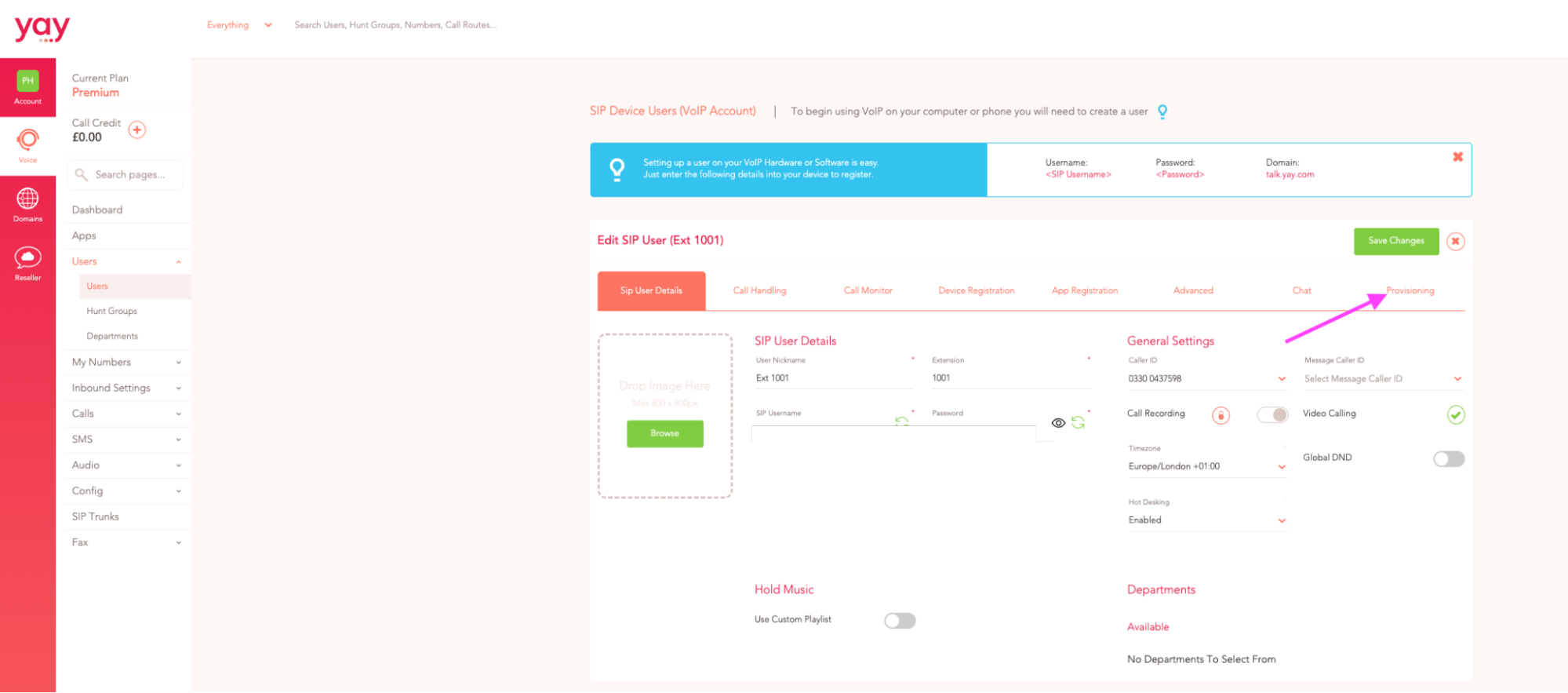
Then navigate to the Provisioning tab to the right hand side of the User details.
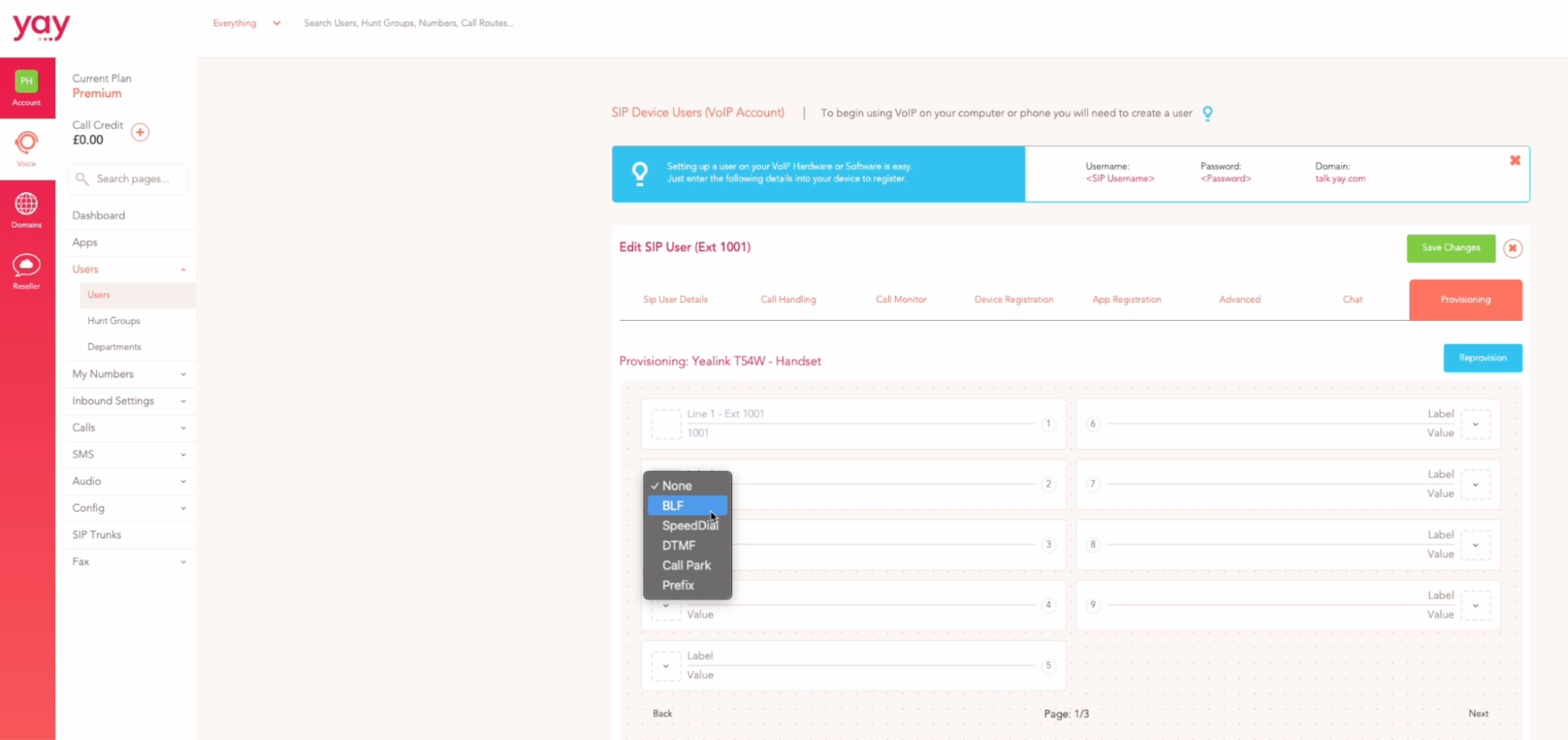
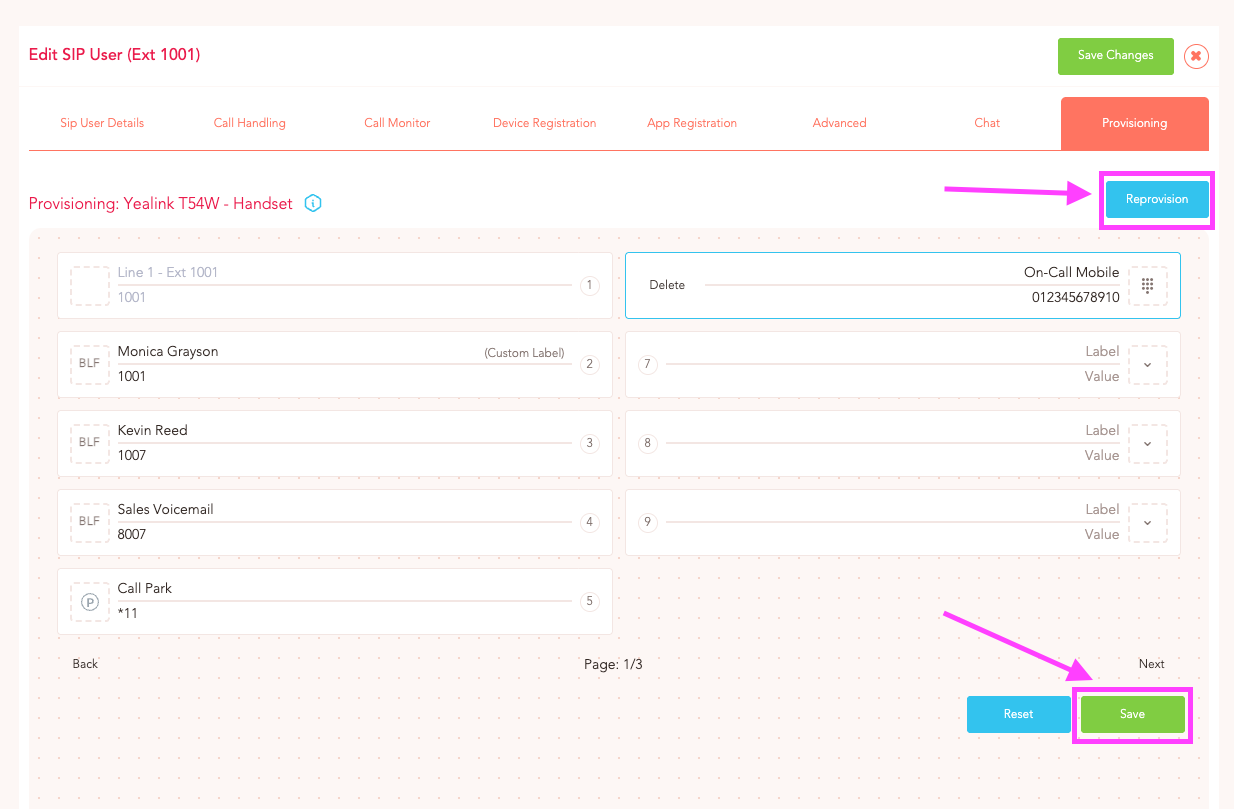
A plain deskphone button layout will be displayed for you to configure. Key 1 must be a Line Key for the user, as it is essential for making and receiving calls.
To add additional keys, start with Key 2 and choose the desired key type, either BLF or Speed Dial etc. To add a BLF key, select 'BLF' from the dropdown menu.
Then enter the key's label, which can be the name of the user or command. The value should be the extension number or short code for the command.
In the example key configuration below, Key 2 is a BLF key for Monica, Key 3 is BLF key for Kevin, Key 4 provides access to the Sales Voicemail box, Key 5 will park\retrieve a call and finally Key 6 is a Speed Dial to dial an external number…
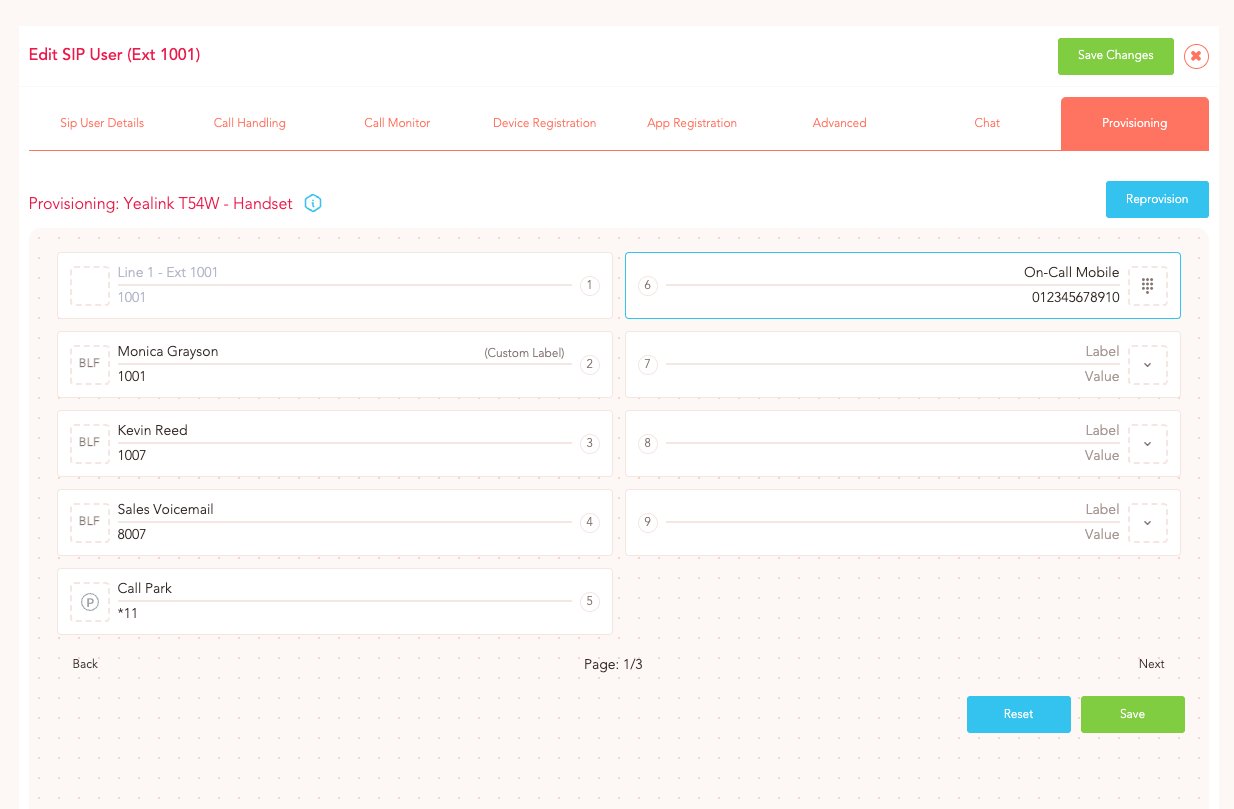
The Reprovision button at the top will instantly update the users handset. Click Next to configure more keys and Save to save the current key configuration.
(B) Setting up BLF keys for multiple Users
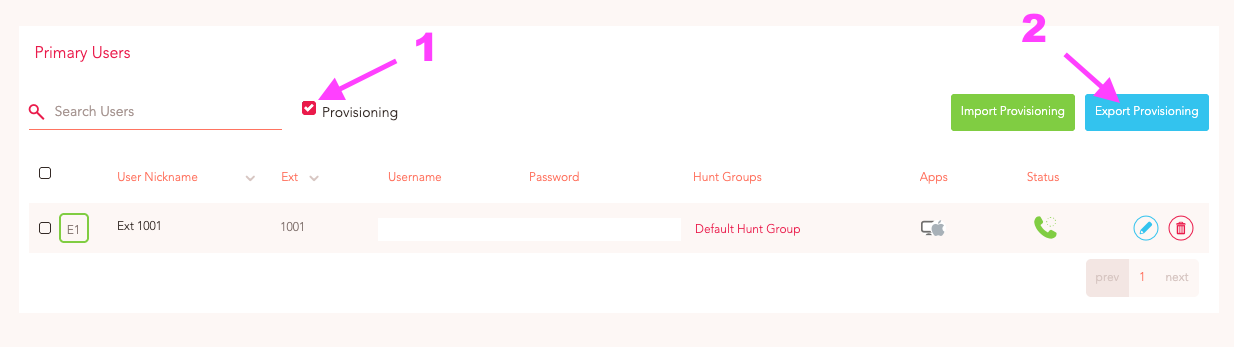
It is possible to bulk configure BLF keys in the Dashboard using a csv. file. On the Users screen, tick the Provisioning box at the top of the page and then click Export Provisioning which will generate a csv file.
Open the csv to get the current line key configuration (see below)....
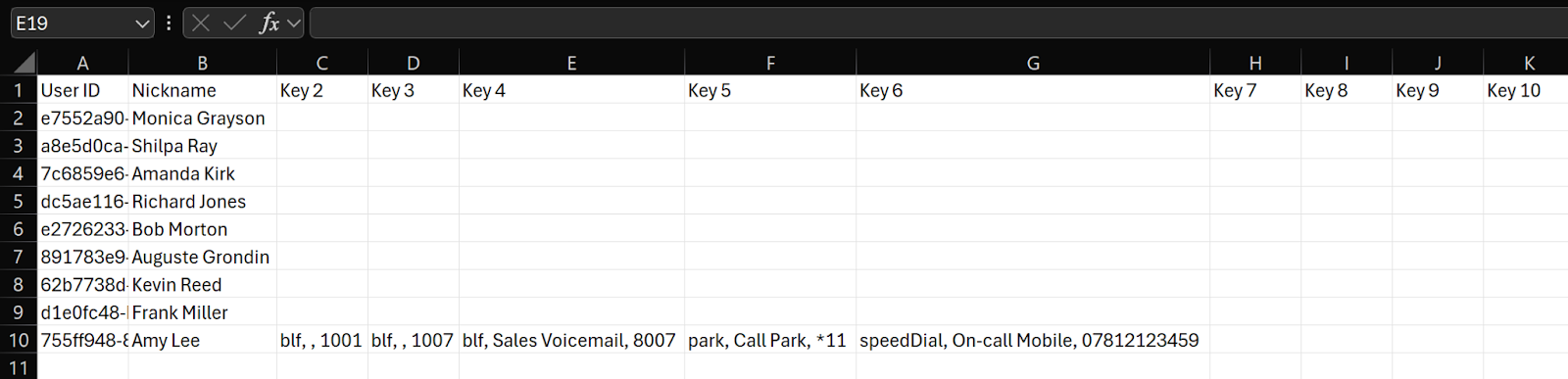
Amy Lee is currently the only user that has a key configuration setup. To quickly replicate Amy’s handset setup for all of the other Users' phones, copy and paste Amy’s key layout for the other users and save the csv.
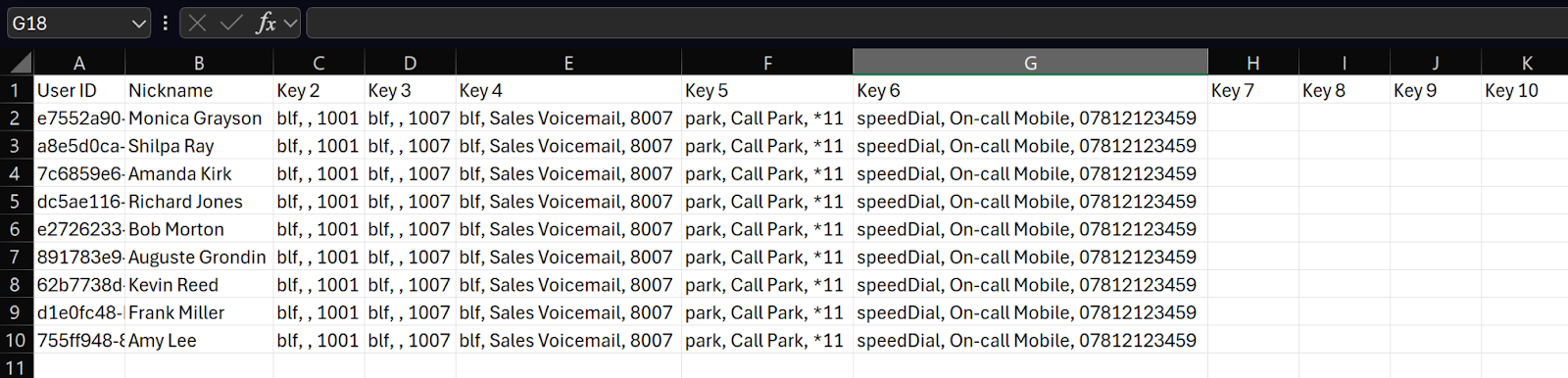
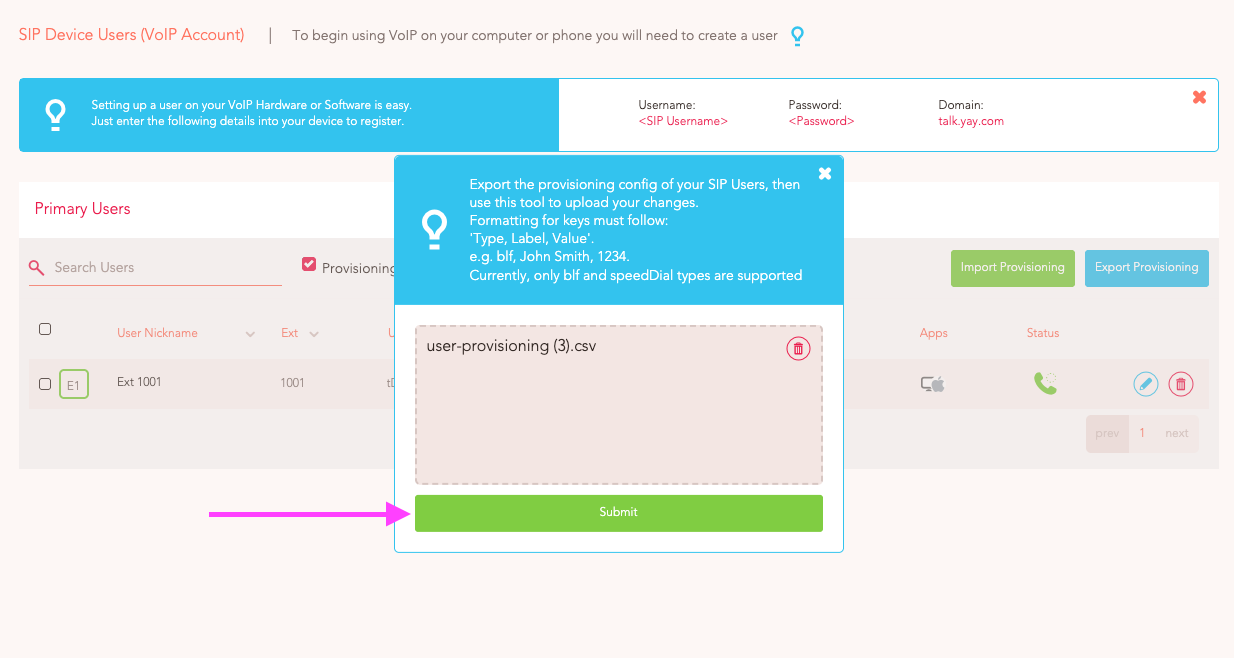
To roll out the new key layout to all of the users, click the Import Provisioning button on the user screen…

Then choose the csv file from your device and click Submit.
Third party handsets my need to be reset or rebooted to pick-up the new BLF configuration.
If you have any questions, please contact our friendly Support Team on 0330 122 6000, or send us an email!