What are system short codes and how do I use them on Yay?
Short Codes can be configured to allow Users to quickly and easily enable, disable, update or access specific features on Yay.com.
Create and apply a Short Code so that a User can….
Listen to a live call on another extension
Join a live call taking place on another extension
Pick-up an incoming call to another extension
Modify their Caller ID
Park or resume a call
Pause and resume call recording
Change the active call route on a number
Play an audio file to the caller
Login/out of a Hot Desk location
Page a Hunt Group
Set an Unconditional call forward…and so much more!
To create a Short Code in the Admin Dashboard:
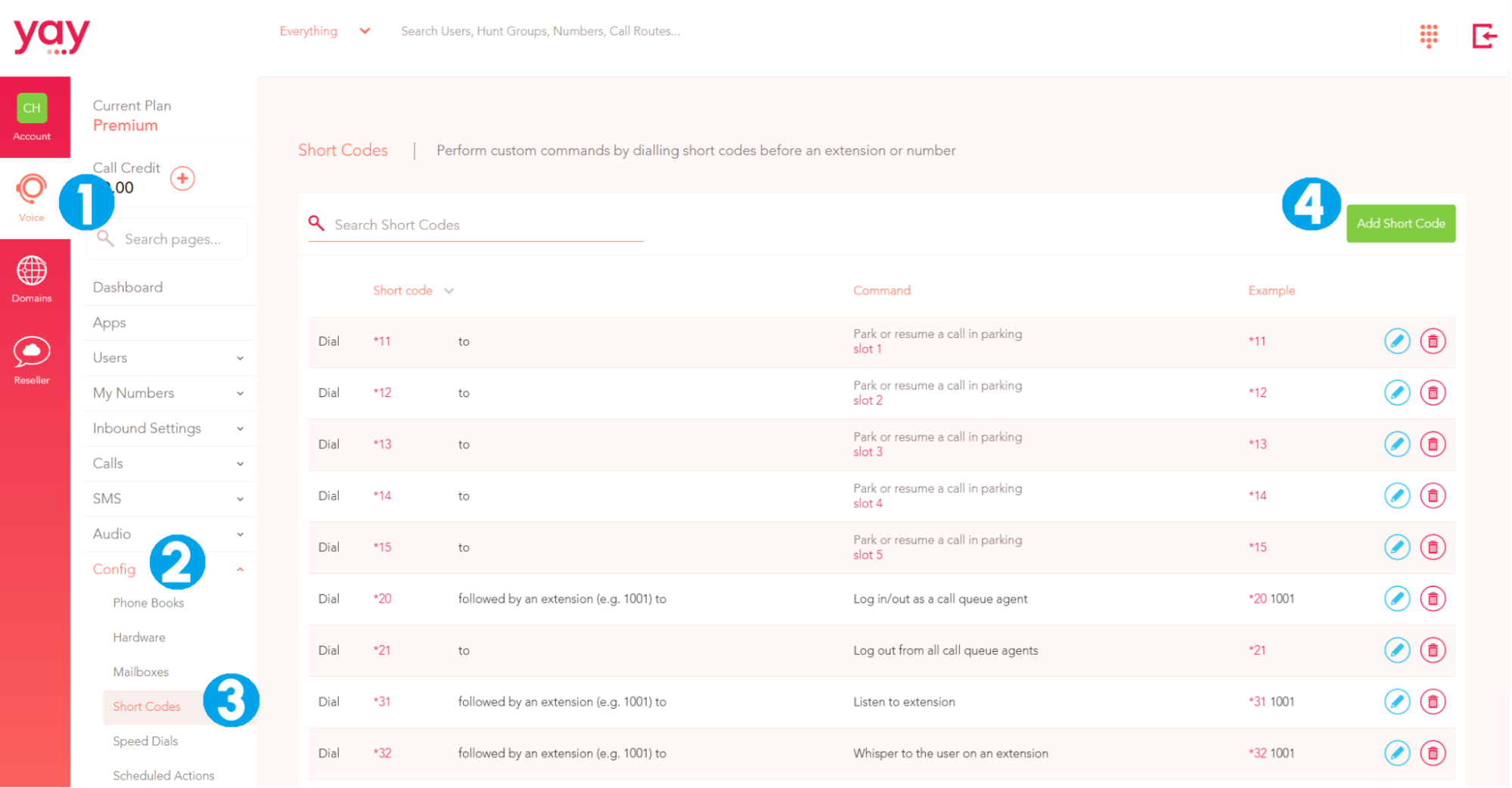
1. Click on the Voice tab to the far-left
2. Go to Config
3. Then select the Short Codes from the Config sub-menu
4. Click the Add Short Code button
In the Short Code column to the left, the system will default to the lowest available short code. You can change the code by using the drop-down or you can simply type the code that you wish to use.
Short Codes must begin with a * and be followed by a two or three-digit number.
Select the Command you want to take place when the chosen short code is dialled by the User.
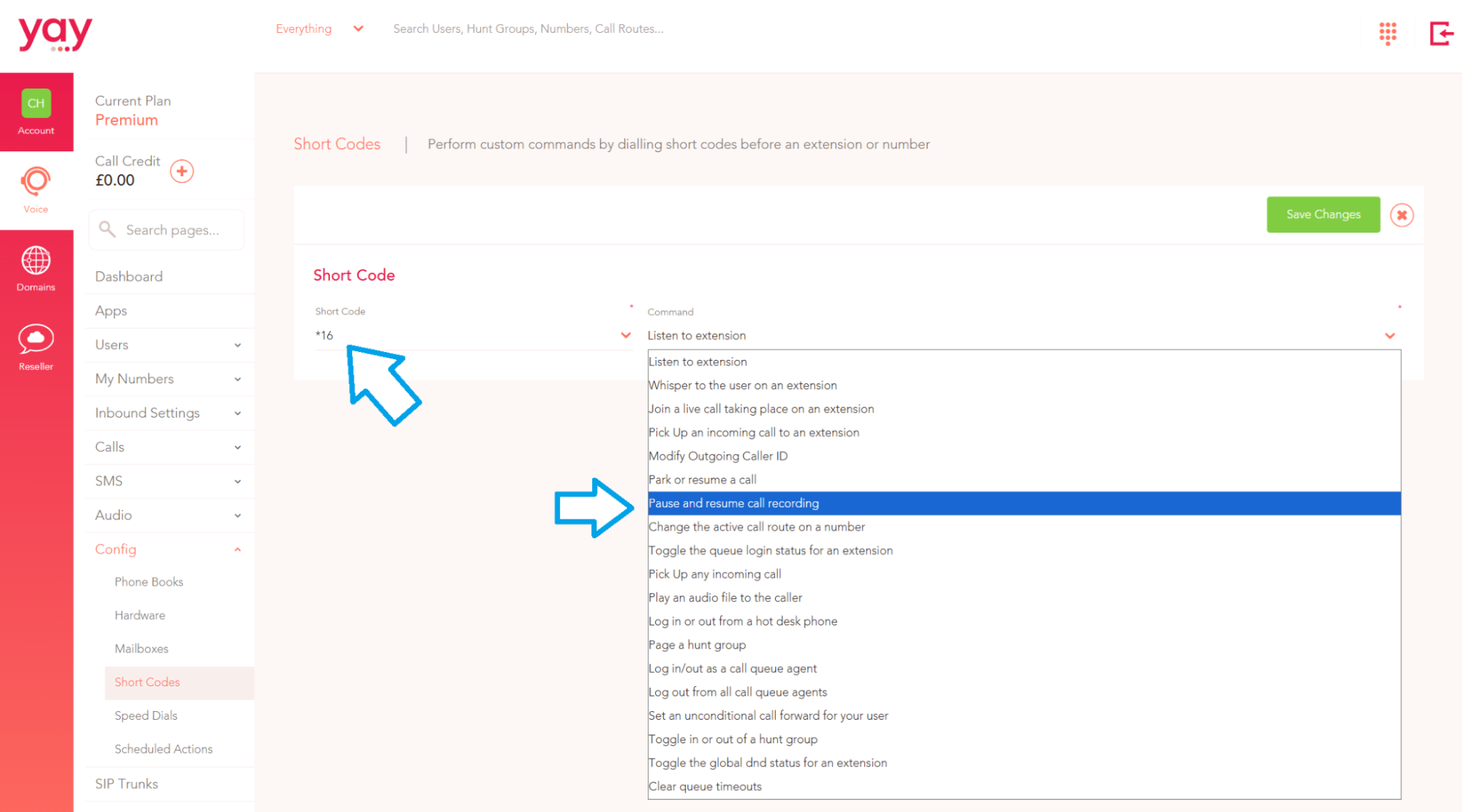
Click Save Changes when you have finished creating your Short Codes.
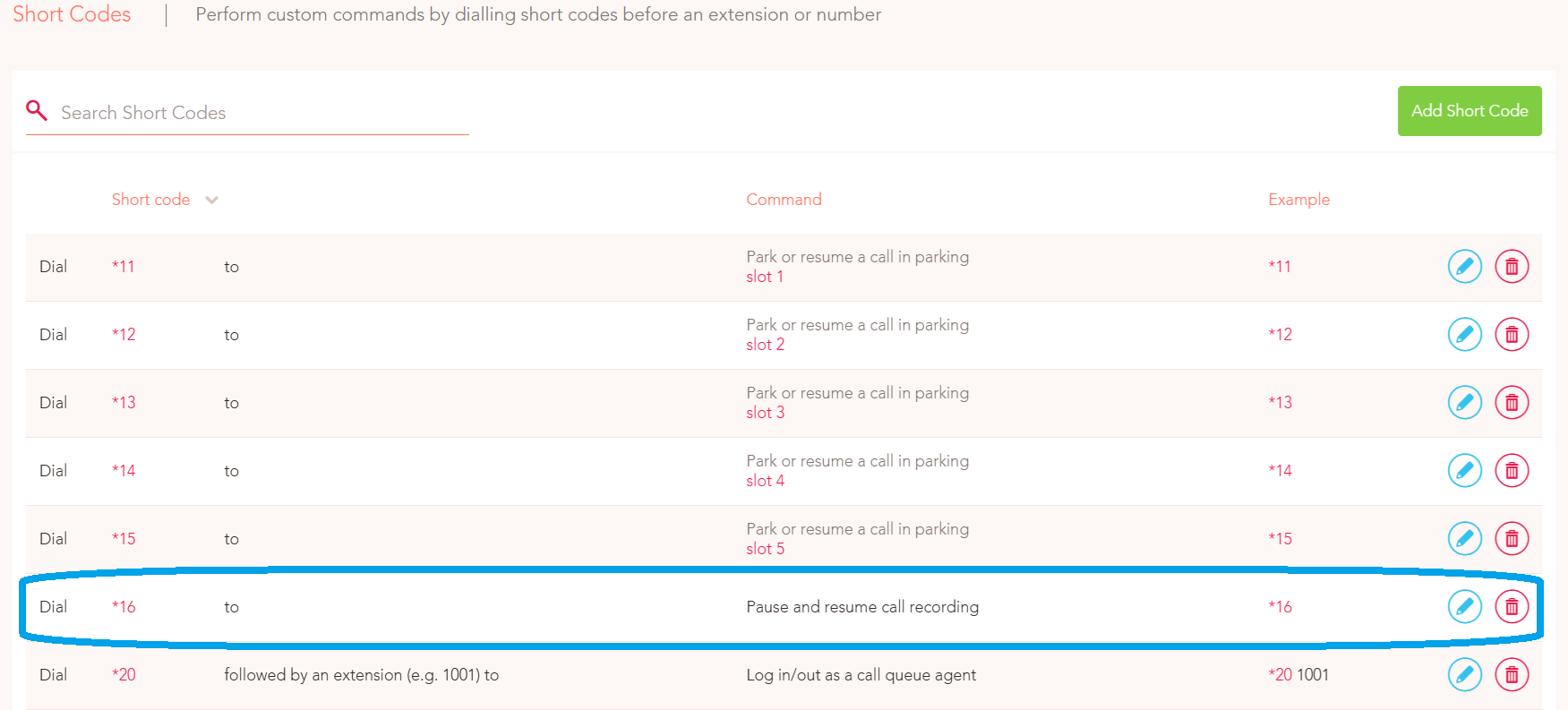
In the example below, *16 has been added to the Short Code list and will pause and resume recording on a live call when dialled by a User.
Once you have created your Short Codes, they can be set as BLF keys and Speed Dials on Users devices.
Yay.com app users will be able to find a list of valid short codes in their app by going to Settings > Short Codes

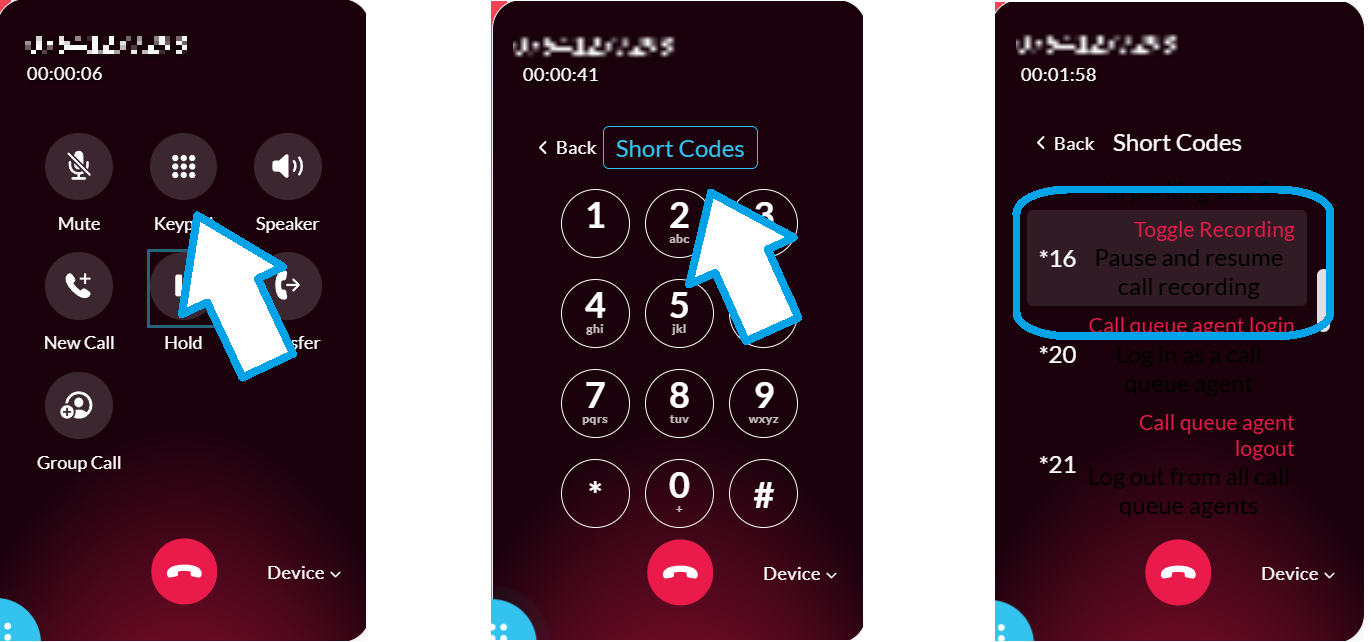
The short codes are also visible and clickable when on an active call in the app.
If you click on the Keypad button on your dialpad when on a live call, your keypad will be presented so that short codes can be entered and dialled.
Alternatively, simply click on the Short Codes button to bring up a short code list where a command can be made by clicking on the relevant short code (see below).