How do I configure a mailbox?
Users are automatically assigned mailboxes that correspond with their default extension number. Calls are set to go to voicemail automatically when a user:
- Is Busy
- Does not answer
- Is Unavailable
This is managed in the Call Handling section in the User Settings:
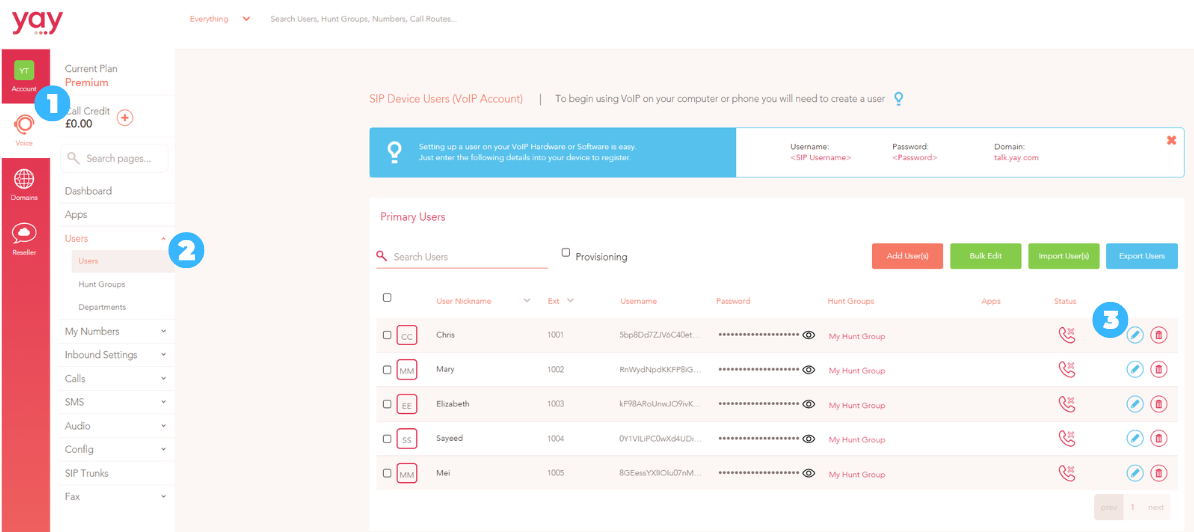
1. Click on the Voice option to the far-left
2. Go to Users
3. Then click the blue Edit button (blue pencil), next to the User you wish to view/change the call handling for.
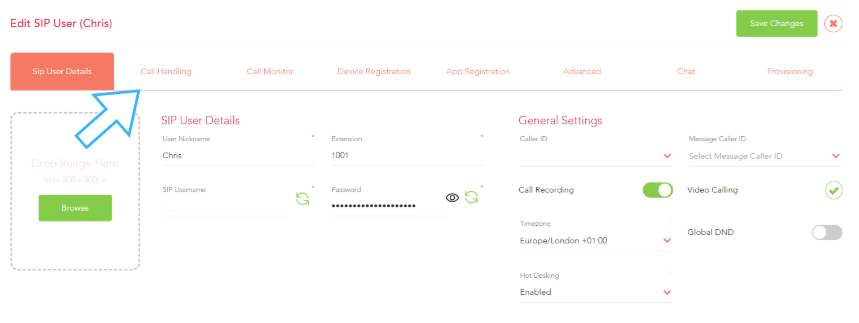
Then navigate to the Call Handling tab next to the User’s general details.
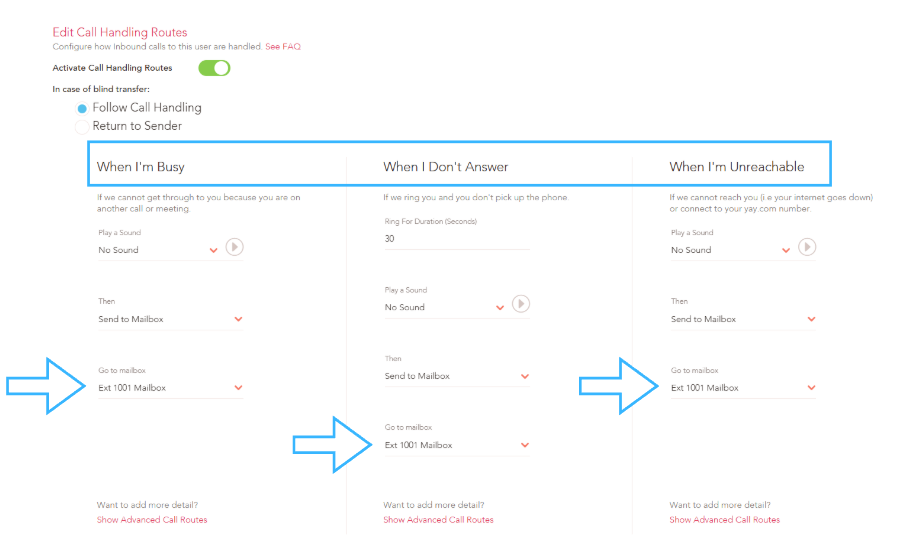
In the example below, you can see that calls are set to go to Ext 1001 Mailbox when the user Chris (1001) is busy, does not answer, or is unavailable.
This is the default mailbox for the user. You can change the destination/mailbox for each condition using the drop-downs provided.
See our guide on Call Handling for alternative forwarding options.
As well as having Personal Mailboxes, you can create additional mailboxes that can be shared and accessed by a group of people or specific departments.
To create a new mailbox:
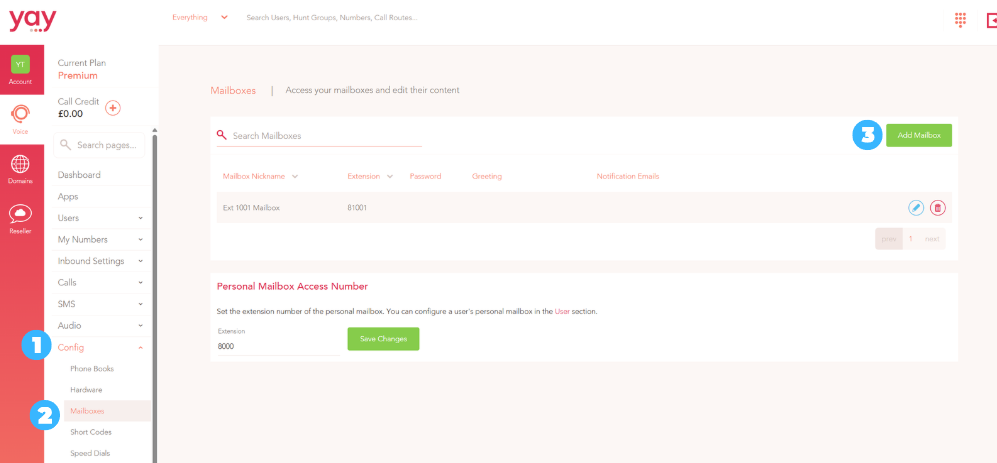
1. Click on Config from the main Menu
2. Go to Mailboxes in the Config sub-menu
3. Then click the Add Mailbox button in the top-right corner
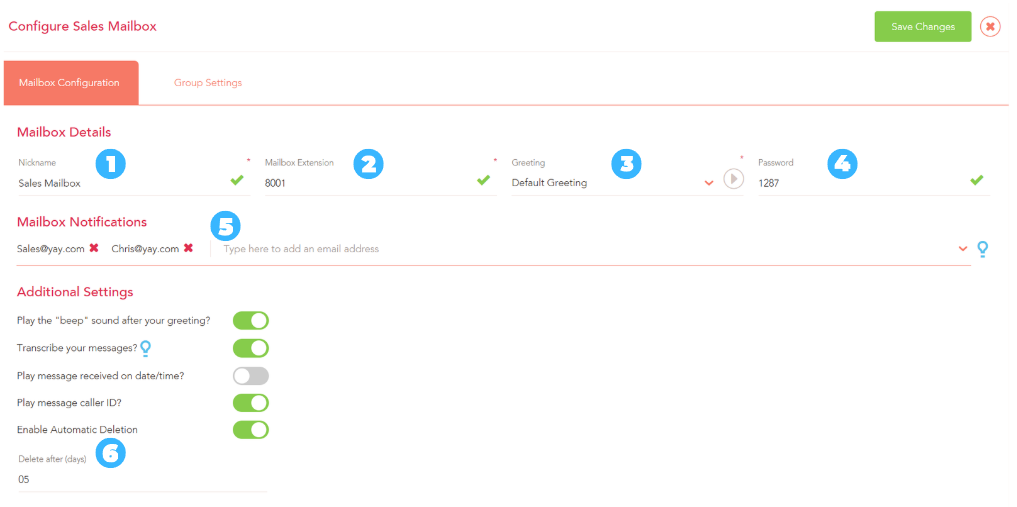
1. Start by giving the mailbox a Name
2. Set the mailbox Extension. This is the number users will dial to access the mailbox
3. Select an Audio File to use as the mailbox Greeting, or use the system Default Greeting. See this guide for how to create audio files.
4. Set a PIN to secure the mailbox. Users will need to enter the PIN when accessing the mailbox.
5. Enter the email address(es) that Mailbox Notifications should be sent to.
6. There are some Additional Settings available so that you can enable/disable a variety of mailbox features and you can also set up Automatic Deletion of voicemails.
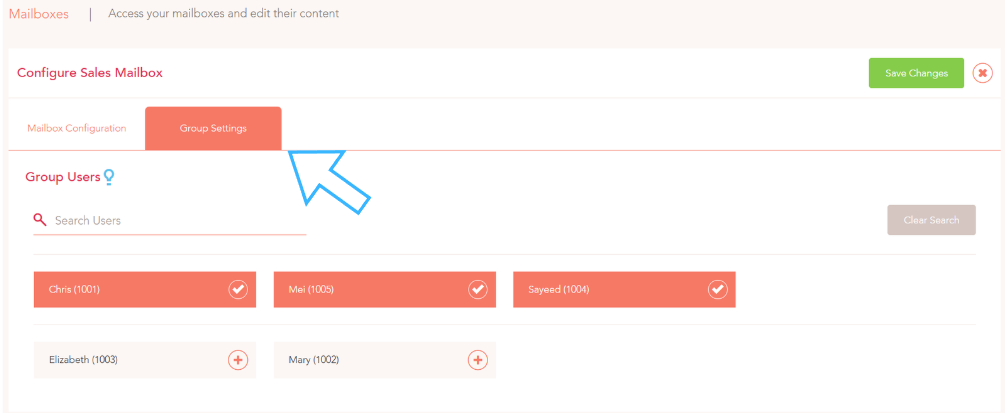
Swap to the Group Settings tab and click on team members that need to receive a Message Waiting Indictor (MWI) on their devices when a voicemail has been left in the mailbox (optional). Click Save Changes to create the new mailbox.
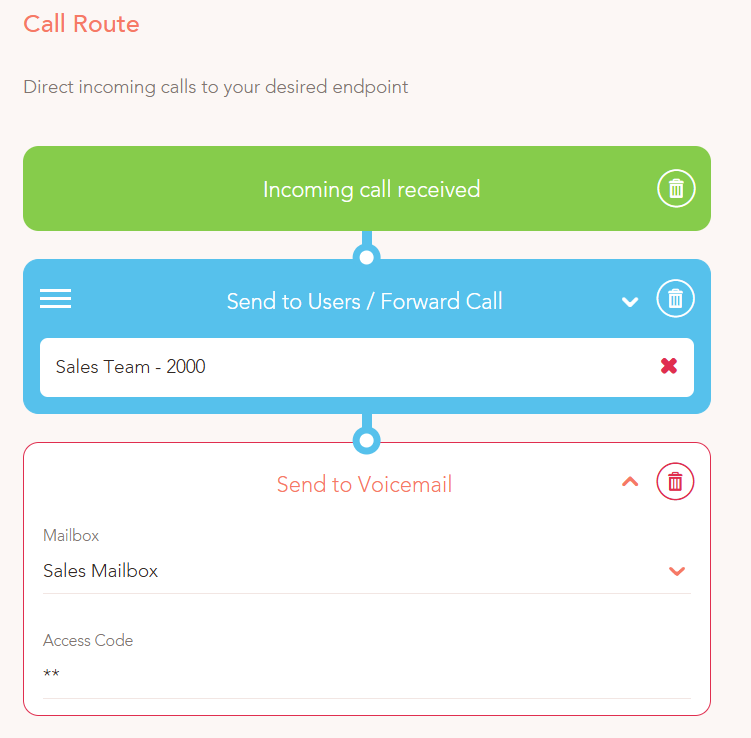
The mailbox can now be set as a destination in a Users Call Handling settings and can also be set in a Call Route as well. See this guide for how to create a Call Route.