How do I clear the cache on the Yay desktop app?
Clearing the cache on your desktop app can be beneficial if you are experiencing any display and loading issues, slower than usual performance (potentially due to a corrupted cache) or for general troubleshooting.
Please note: clearing the cache of the app will require the user to sign in to it again once the process has been completed.
To clear the cache you will first need to open up the Inspector. This is done using the following steps:
1. If you're on a Windows device, make sure the app is selected and press the alt key, a toolbar menu should appear at the top of the app; if you're on a Mac device then refer to the menu bar at the top of the screen while the app is the focus.
2. Navigate to Tools > Show Inspector.
3. You will see a number of headings: Elements, Console, Sources etc...
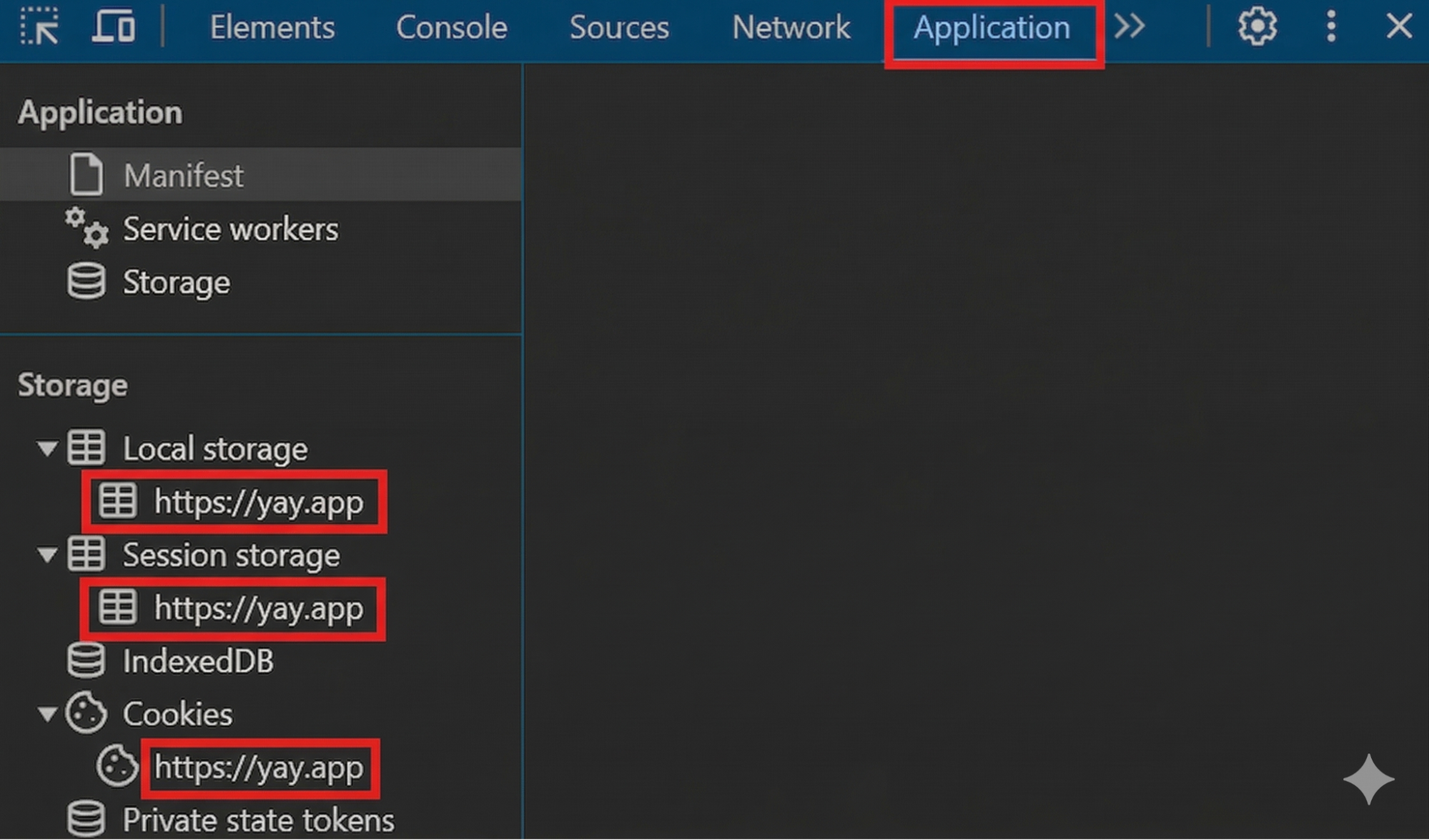
4. The Application heading needs to be selected, if this is not visible, then it should be available in the drop-down menu by clicking on the two arrows pointing to the right.
You should see something similar to the below image:
With the Inspector open, the relevant caches can now be cleared:
1. Expand the Local Storage, Session Storage & Cookies drop-down menus.
2. Right-click on the https://yay.app line that is now visible under each section and click Clear as seen in the image below for all three of them.
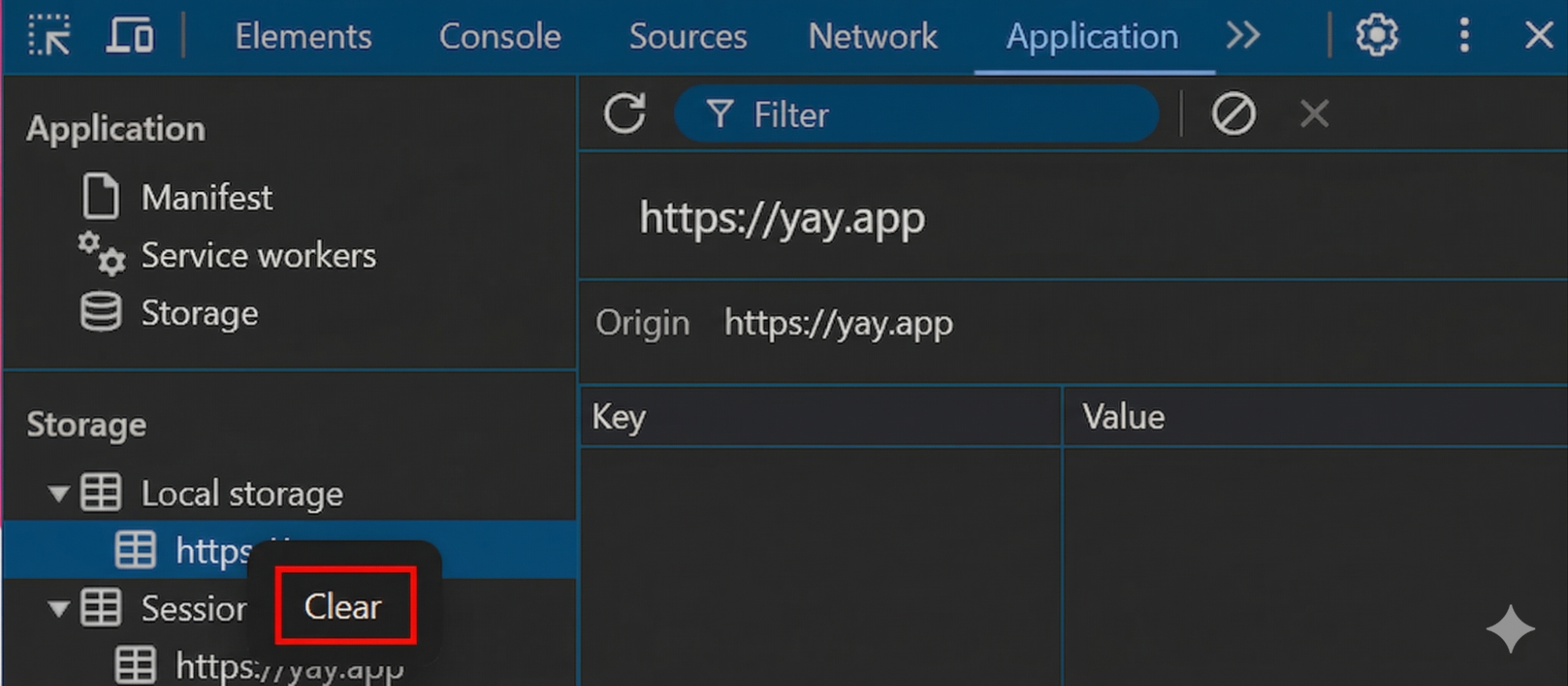
3. Once completed, refresh the app (either by pressing Ctrl/Cmd + R or the Refresh App button). The user will need to log in again once the app is refreshed.
The cache has now been cleared.