How do I set Call Restrictions on an account?
Call restrictions can be set up to help control spend, mitigate fraud, and help to prevent malicious call activity.
Restrict outbound calls to specific countries, prefixes, or limit calls exclusively to selected numbers.
Apply these restrictions across the account or to specific users, and make use of time-schedules to apply restrictions only at certain times of day.
Basic Outbound Call Restrictions
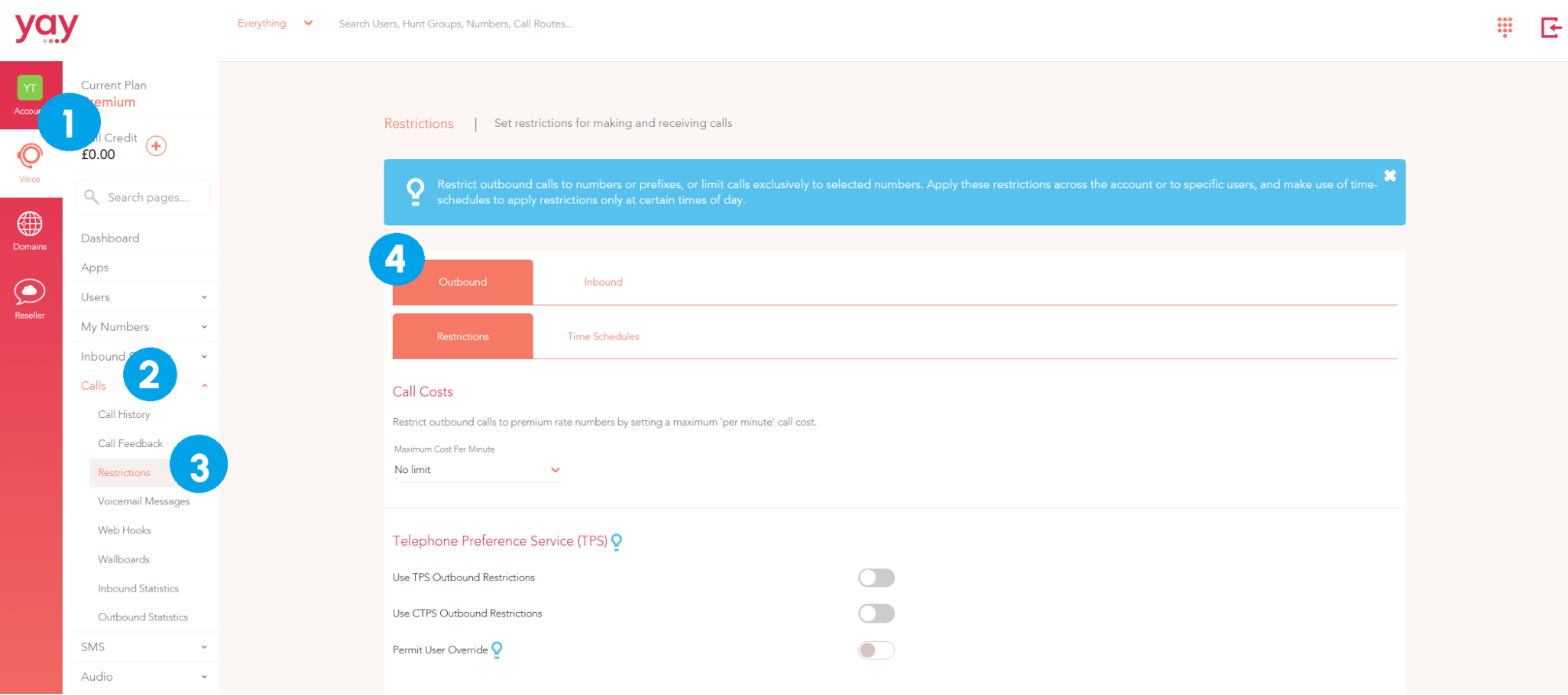
To get started with setting Outbound restrictions, you can access the Call Restrictions area of the Dashboard by following the instructions below…
1. Click on the Voice option to the far-left
2. Go to Calls
3. Click Restrictions
4. Ensure that you are on the Outbound tab of the Restrictions section
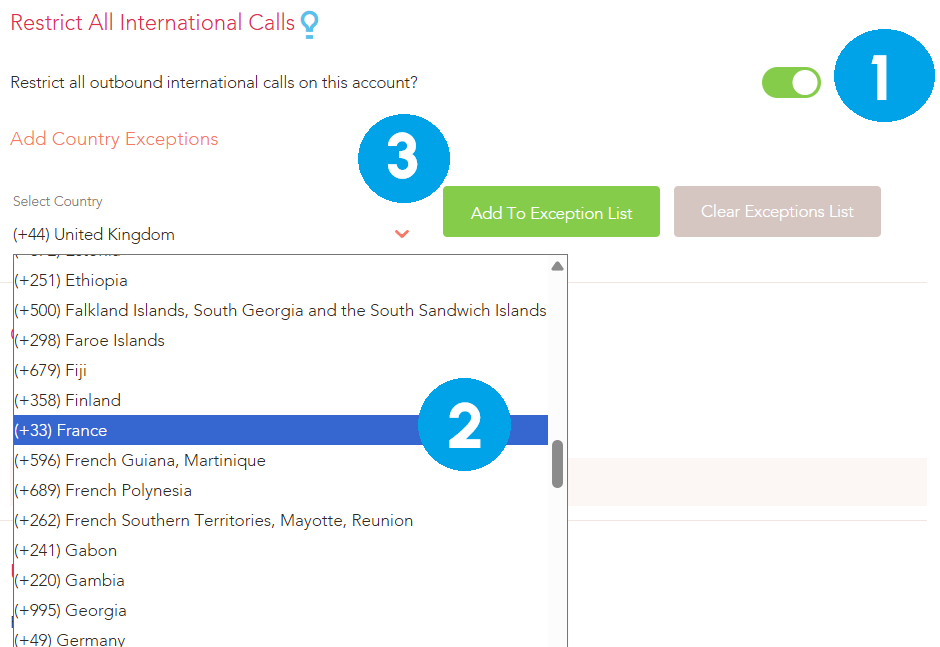
You can restrict all outbound international calls on the account with a single click of a button. You can then select countries from the drop-down list on the left and click the Add To Exception List button to allow calls to the chosen country.
A working example, to bar international calls but allow calls to France…
1. Switch on Restrict All Outbound International Calls
2. Select France from the Country list on the left
3. Click Add To Exception List
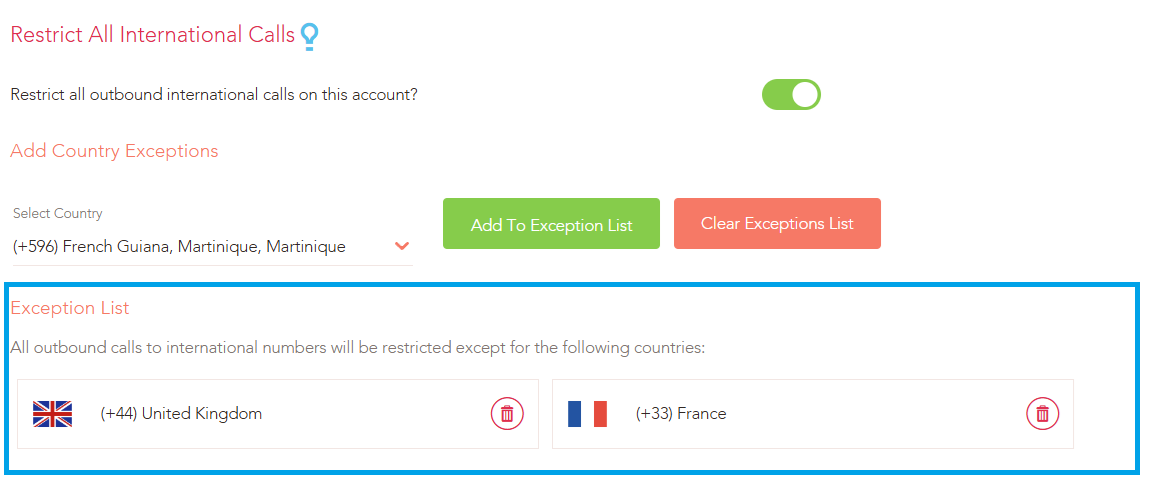
France will then be added to the Exception list (along with the UK) as destinations that the users are permitted to call. You can add as many countries as you wish to the Exception list and remove them any time by clicking the ‘bin’ icon next to the country.
Basic Inbound Call Restrictions
Swap to the Inbound tab to configure basic Inbound call restrictions to block inbound traffic from specific countries and telephone numbers.
1. Swap to the Inbound tab
2. This is a switch that will allow you to block all Anonymous calls when set to ON
3/4. Restrict inbound calls from certain numbers by adding a Number Sequence to the Restricted List.
For example, to bar inbound calls from the United States, you would specify numbers that Begins With (using the drop-down on the left) and enter +1 in the number sequence on the right (+1 being the international code for numbers in the U.S).
To bar incoming calls from mobile numbers, you would specify numbers that Begins With and the number sequence +4407 (Note: the E.164 number format needs to be used including the international dialling code even for U.K numbers).
To block a specific number, specify number Equals and add then type the full number sequence. This feature is useful for barring nuisance or malicious callers.
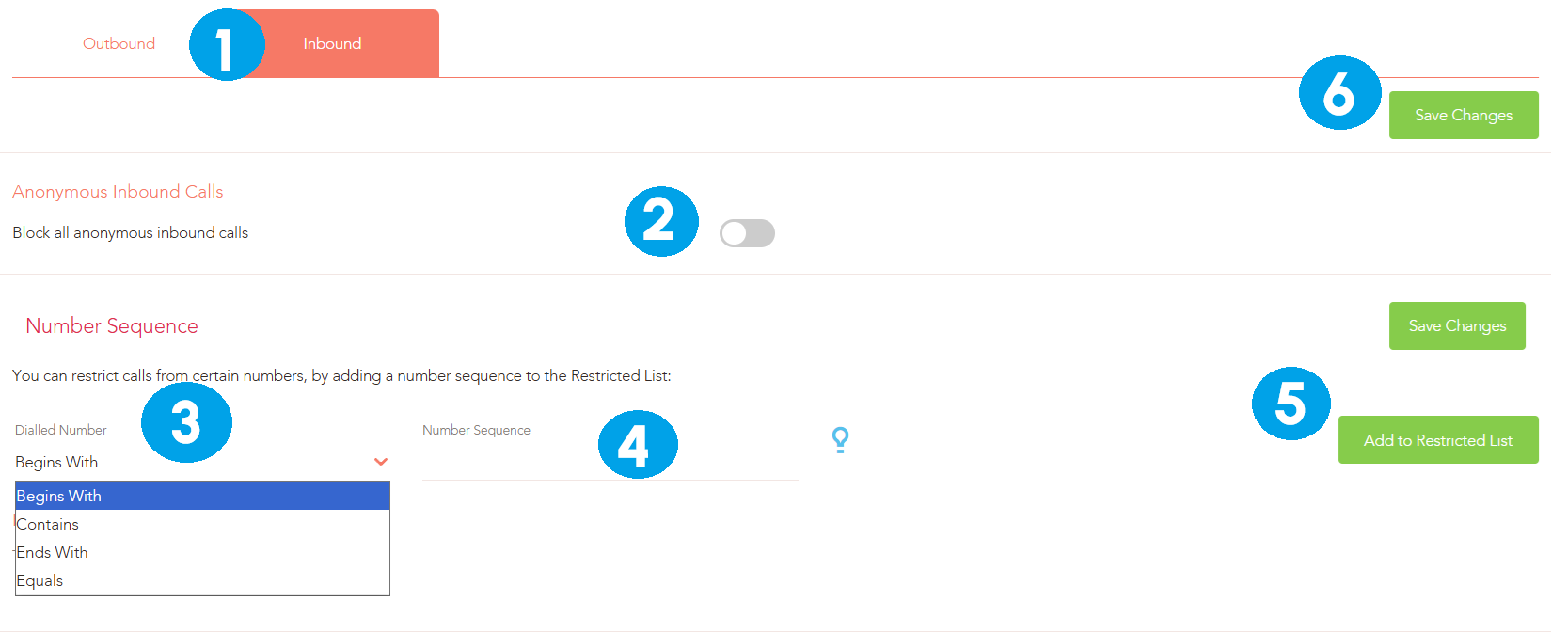
5. Click the Add to Restricted List next to the Number Sequence to actually add the inbound call restriction
6. Click ‘Save Changes’
Creating Custom Restrictions
To create custom restrictions for outbound calling, click on the Create Restriction button in the Restrictions area of the Dashboard...
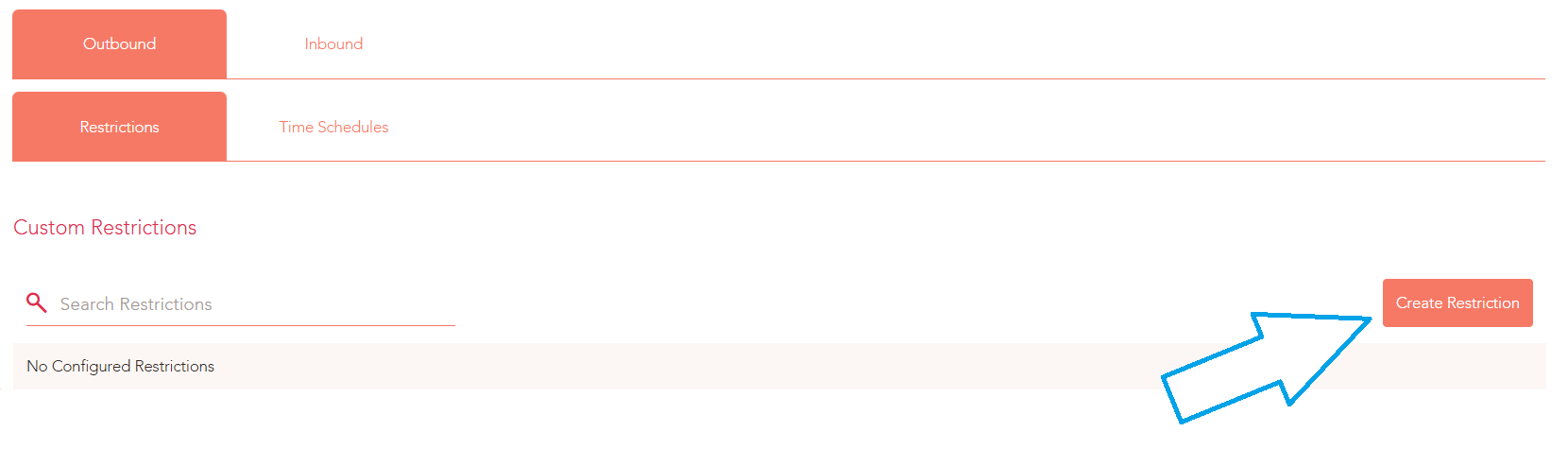
Use the switches and drop-down boxes provided to create custom call restrictions.
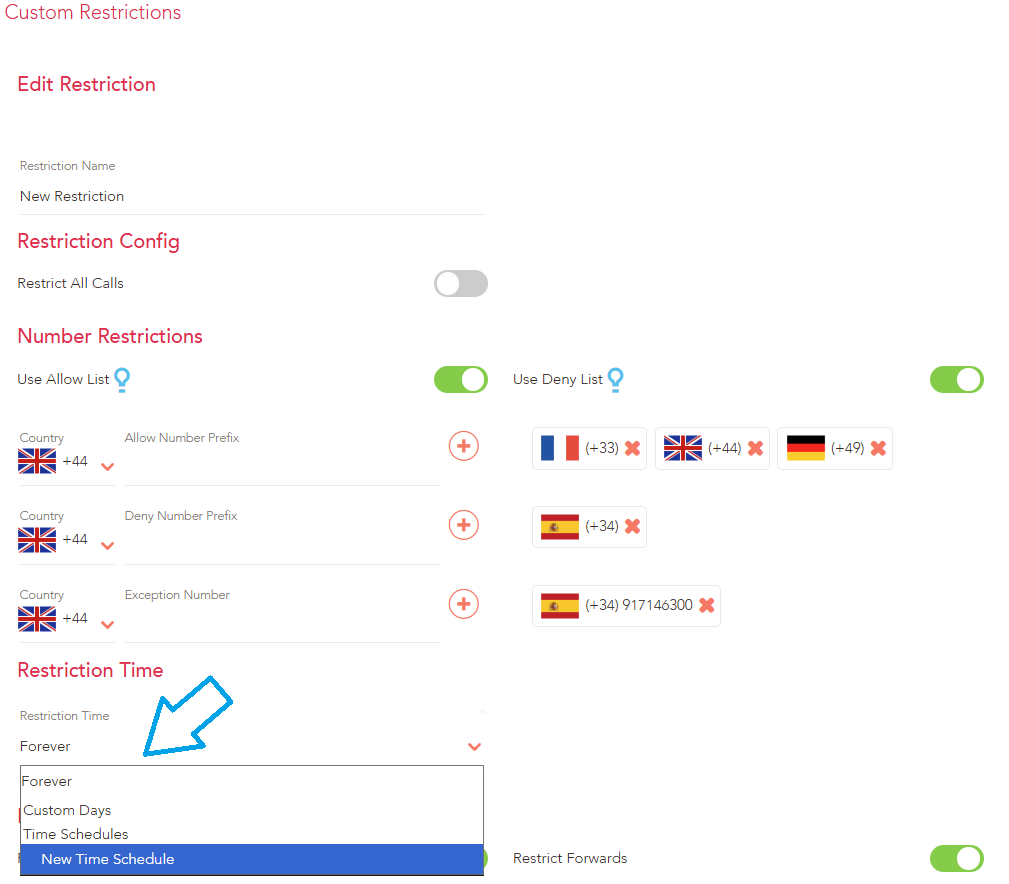
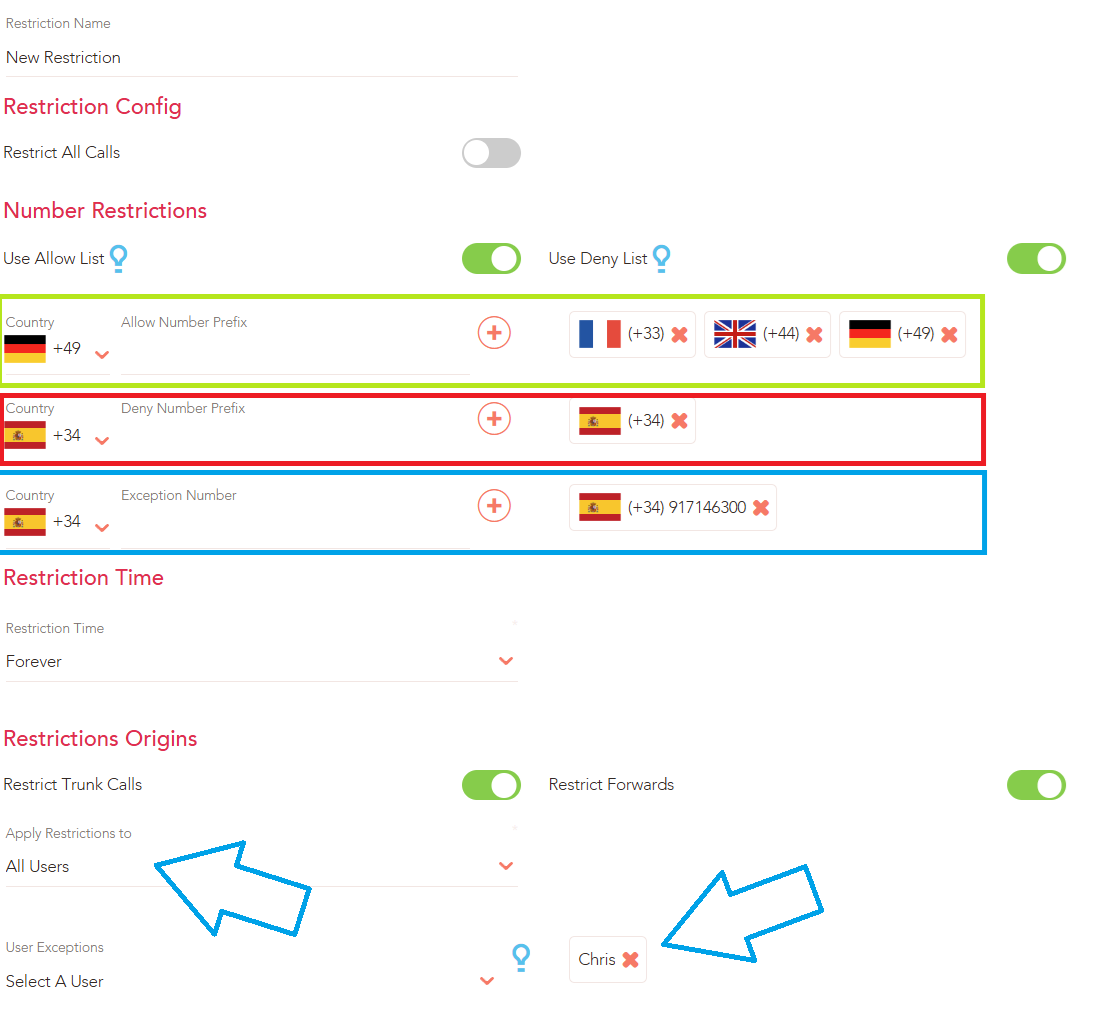
Firstly, give your custom restriction a Name (at the top of the screen). When setting up the restrictions, you have three lists that read from left to right.
The first list is the Allowed List (highlighted in green), countries and numbers listed here will be permitted when dialled. In the image below calls to UK, France, and Germany are all allowed.
Underneath that, you have the Deny List (highlighted in red), countries and numbers listed here will be barred. In the image below calls to Spain have been barred.
Finally, you have an Exception list (highlighted blue), so you can exempt numbers from the general barring rules. In the example below, I have barred calls to Spanish numbers exempting number +34917146300 so calls to that single Spanish number will be allowed.
I have applied this restriction to All Users with the exception of Chris. Use the drop-downs to select users to apply/exempt from the call restriction.
You can set a Restriction Time by creating a Time Schedule. This is useful for activating call bars and restrictions on specific days at precise times.
Fraudulent activity typically happens in the evenings and weekends so you can set up aggressive restrictions during those times when people are not in the office and then relax them automatically during working hours.
Creating a Restriction Time Schedule
A Time Schedule can be set up for outbound call restrictions.
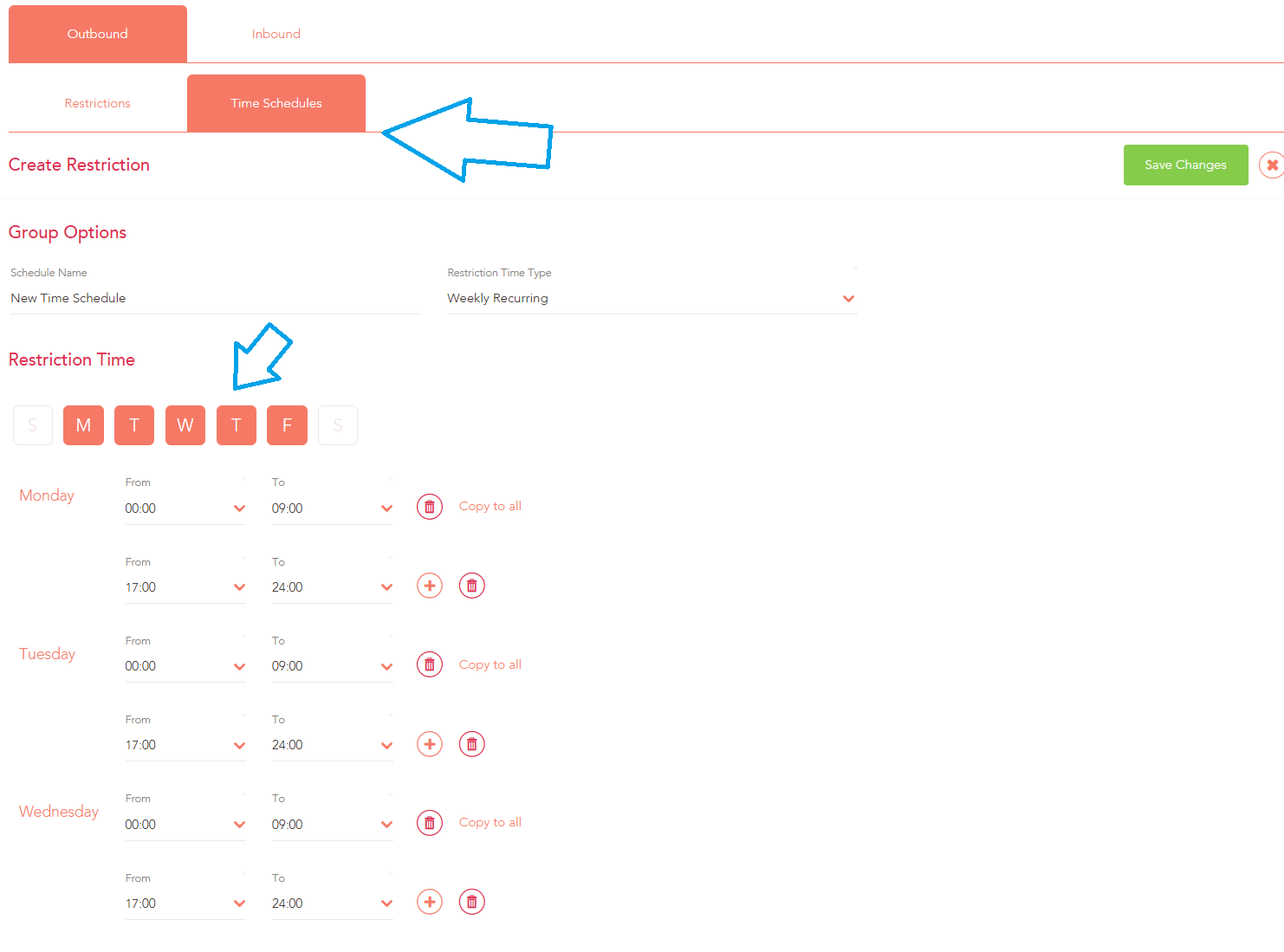
1. Swap to the Time Schedules tab under Outbound.
2. Give your schedule a Name and then select your Restriction Time using the buttons and drop-downs provided.
In the screenshot below, I have set the restrictions to start at midnight and then lift @9am when people come into the office. The restriction will then be applied again at 5pm through to midnight when the office is closed. This occurs for each weekday.
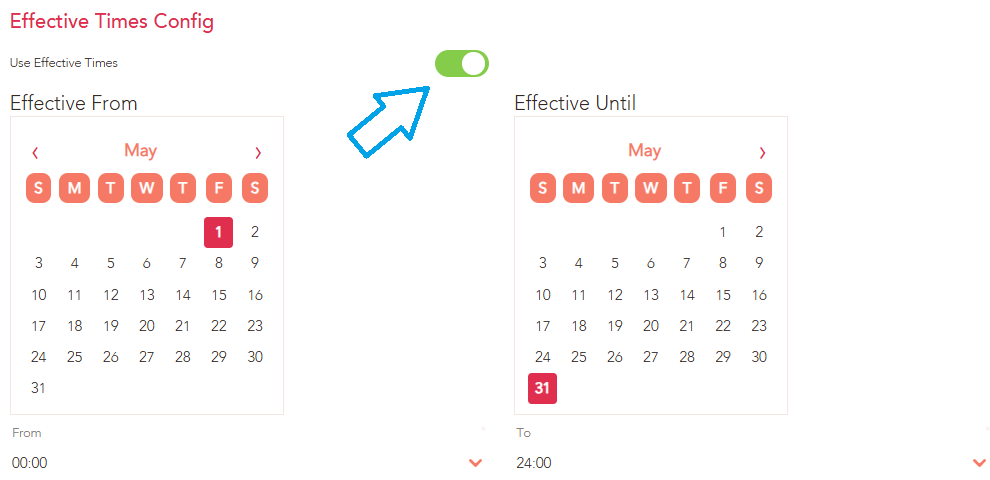
3. You can set a start date and finish date/time for the call restriction by clicking the Use Effective Times option.
In the example below, the call restriction will begin at midnight on May 1st, and then run until May 31st when the restriction will be permanently lifted.
You can use the Restriction Time drop-down on your custom call restriction to select your Time Schedule…