Can I set my own hold music, and where can I do this?
You are able to create a music playlist with a selection of music tracks that are readily available in the Yay.com dashboard. Alternatively, you can upload your own music files to use on the system. Both options are covered in this article.
Note: Please ensure that you have the required license if you are using copyrighted music and material.
Uploading Music Audio Files
Audio files are created, uploaded and stored in the Audio section of the dashboard.
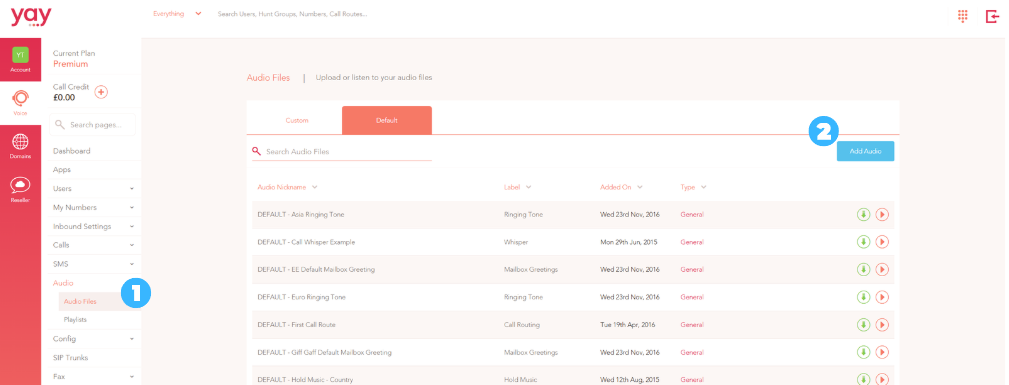
1. From the dashboard, head to Voice > Audio > Audio Files
2. Click the Add Audio button in the top-right corner to begin.
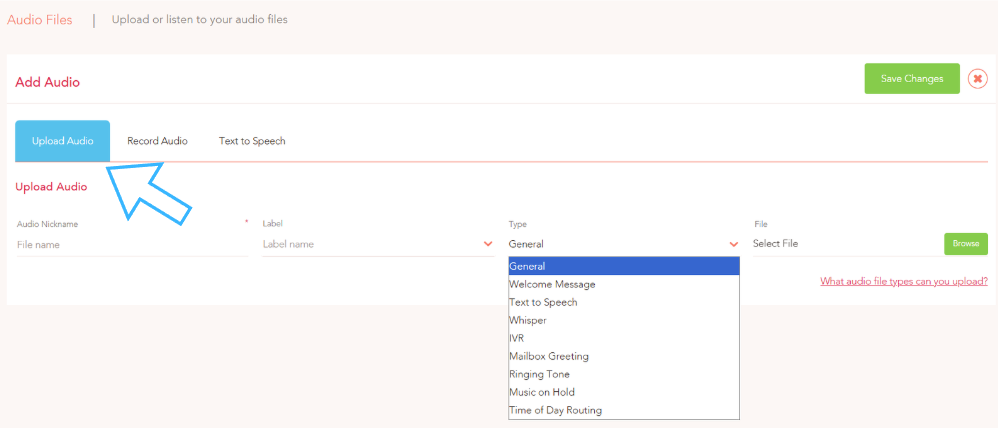
Once you have clicked the Add Audio button, the first of the three tabs that you are presented with, is the Upload Audio tab.
This is where you will be able to upload a music file from your computer. Simply give your file a Name, enter an appropriate Label to describe the audio file (e.g. ‘Music’), select a Type to identify its intended purpose (e.g. Music on Hold), and then click the blue Browse button to select a file from your device.
Click on the Save Changes button above to complete the upload.
Creating a Music Playlist
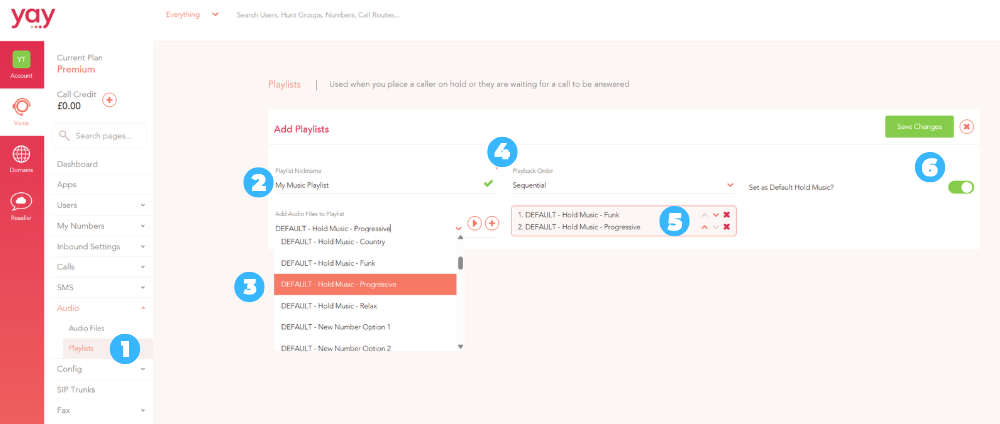
1. Go to Voice > Audio > Playlists
2. Give your music playlist an appropriate Name
3. Use the drop-down to select audio files to add to your playlist.
Selecting the blue Play button will allow you to sample the audio/music, and clicking the red + button will add the file to your playlist which will then appear in the box to the immediate right (5).
You can select both your custom music files and the prerecorded system music files from this list.
4. The Playback Order button will allow you to select one of two playback options.
The Sequential option will ensure that the music tracks are played in the order that they are listed in the box below.
Alternatively, you can change this to Random whereby music tracks will be shuffled and played in a random order when a caller is put on hold or waiting in a queue.
5. This playlist box shows you the selected music tracks and the order that they will be played in (if your Playback Order is set to Sequential). You can change the play sequence of the music tracks by clicking the up and down arrows in the box
6. If you would like to set your new Playlist to be the default playlist across all of your users and queues, then switch the Set as Default Hold Music option to On.
Applying your Music Playlist
If you would like your playlist to be the default playlist across all of your users and queues, then switch the Set as Default Hold Music option to On (6). Alternatively, you can apply the music playlist to users and queues on an individual basis.
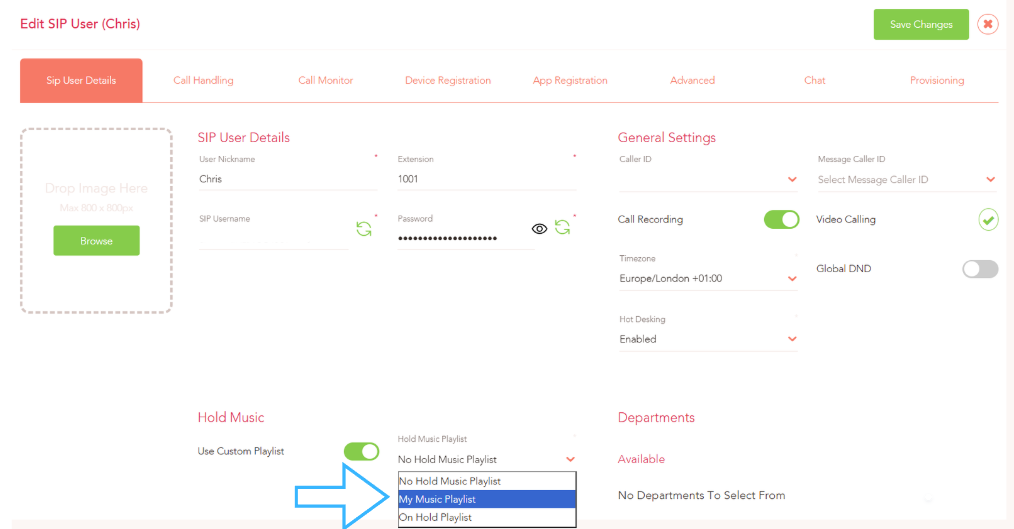
To apply the music playlist to a user, go to Voice > Users > Edit User and set the desired Music Playlist using the drop-down at the bottom
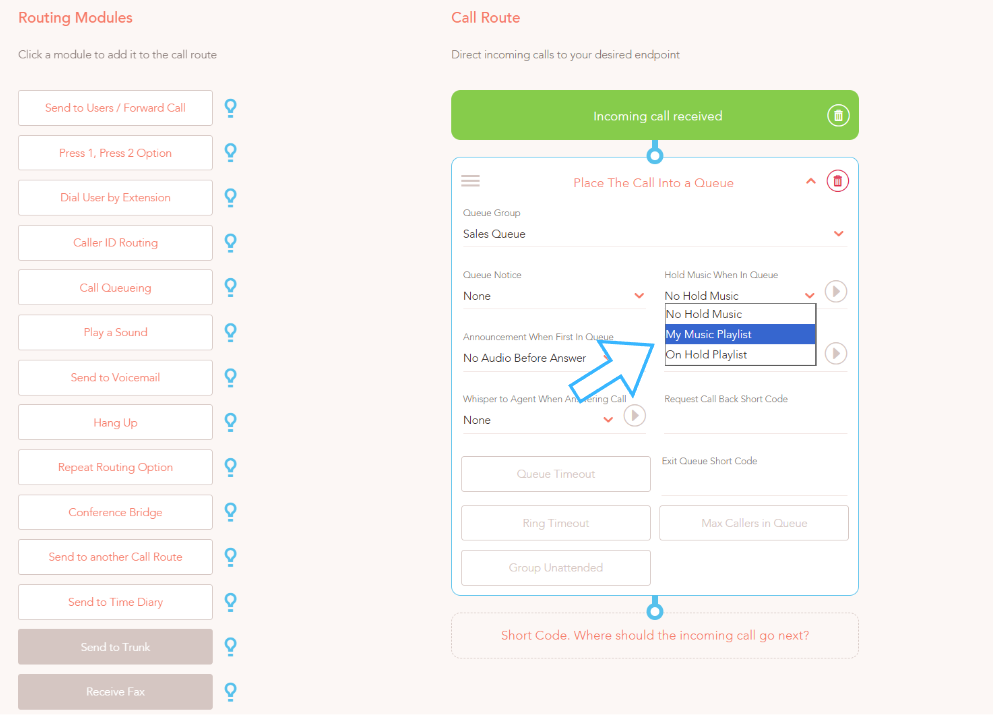
To apply the music to a Call Queue, you'll need to set the playlist on the Call Queueing routing module when you are building a Call Route (see below):
For more information on how to create a Call Route, please click here!