How do I add a Time Diary?
Time Diaries allow you to automatically apply different call routes to your telephone numbers based on the time of day, week, or specific dates. They are useful for setting up your business operating times and setting up ‘out of hours’ messages and flows.
To create your first Time Diary, follow these steps:
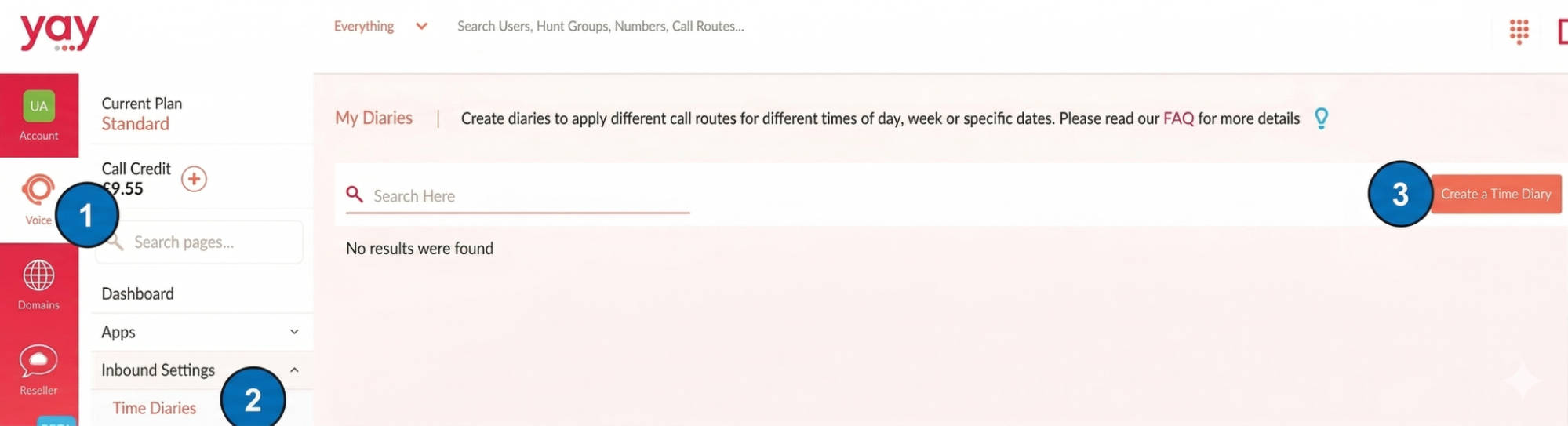
1. Navigate to the Voice tab on the left
2. Select Inbound Settings from the menu and then click on Time Diaries
3. Click on the Create Time Diary button on the right hand side
At the top of the page…
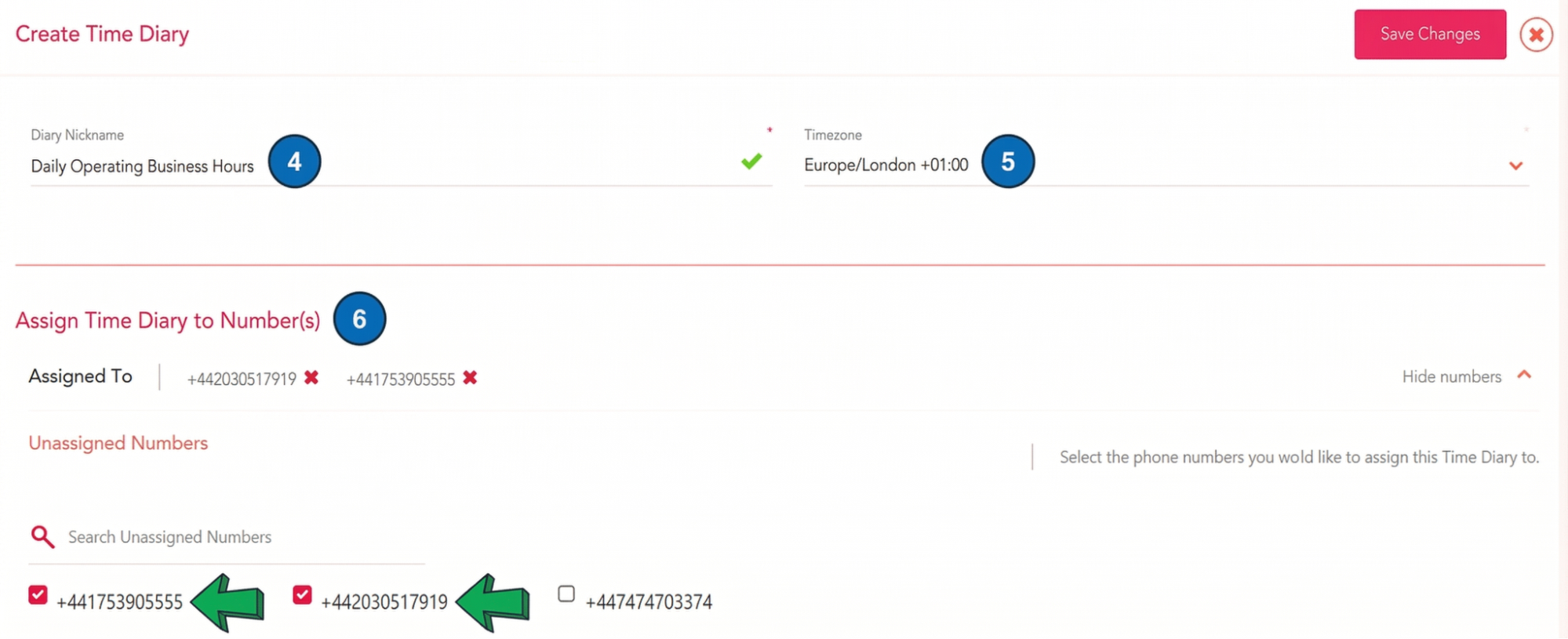
4. Give your Time Diary a Name
5. Set your Timezone
6. Assign the Time Diary to your desired Telephone Number(s)
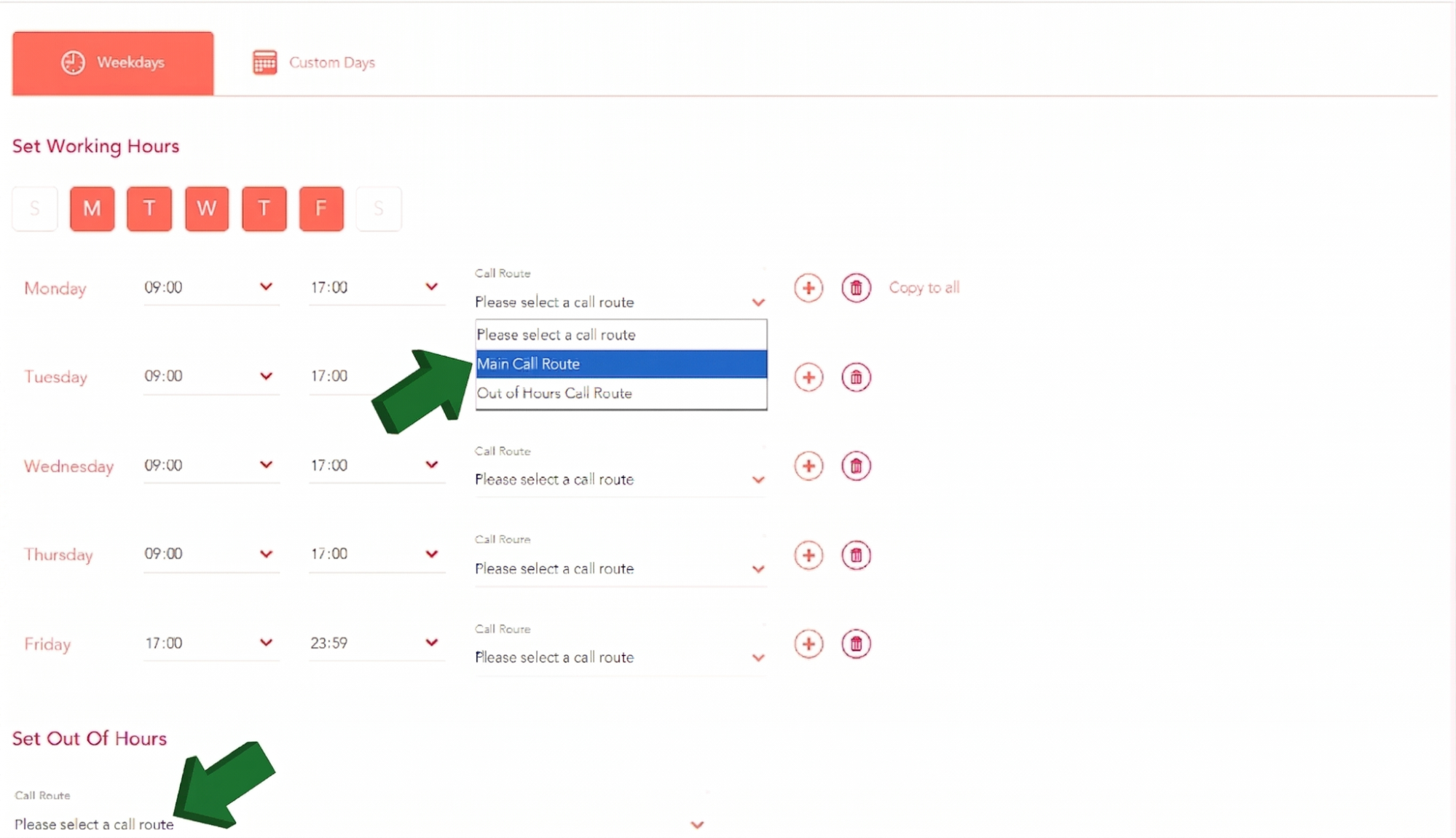
Scroll down to set your Working Hours. Select which days and set the time of day the business is Open. Then use the Call Route drop down to select the Call Route you want calls to follow during those specific hours. If you want to apply the same Call Route to each selected day, click Copy to all on the right.
The + icon allows you to add more working hours. For instance, if the office is closed during lunchtime, you can send calls to a designated 'Closed for lunch' Route.
Use the Set Out of Hours drop down at the bottom to set which Call Route should be active when the business is Closed.
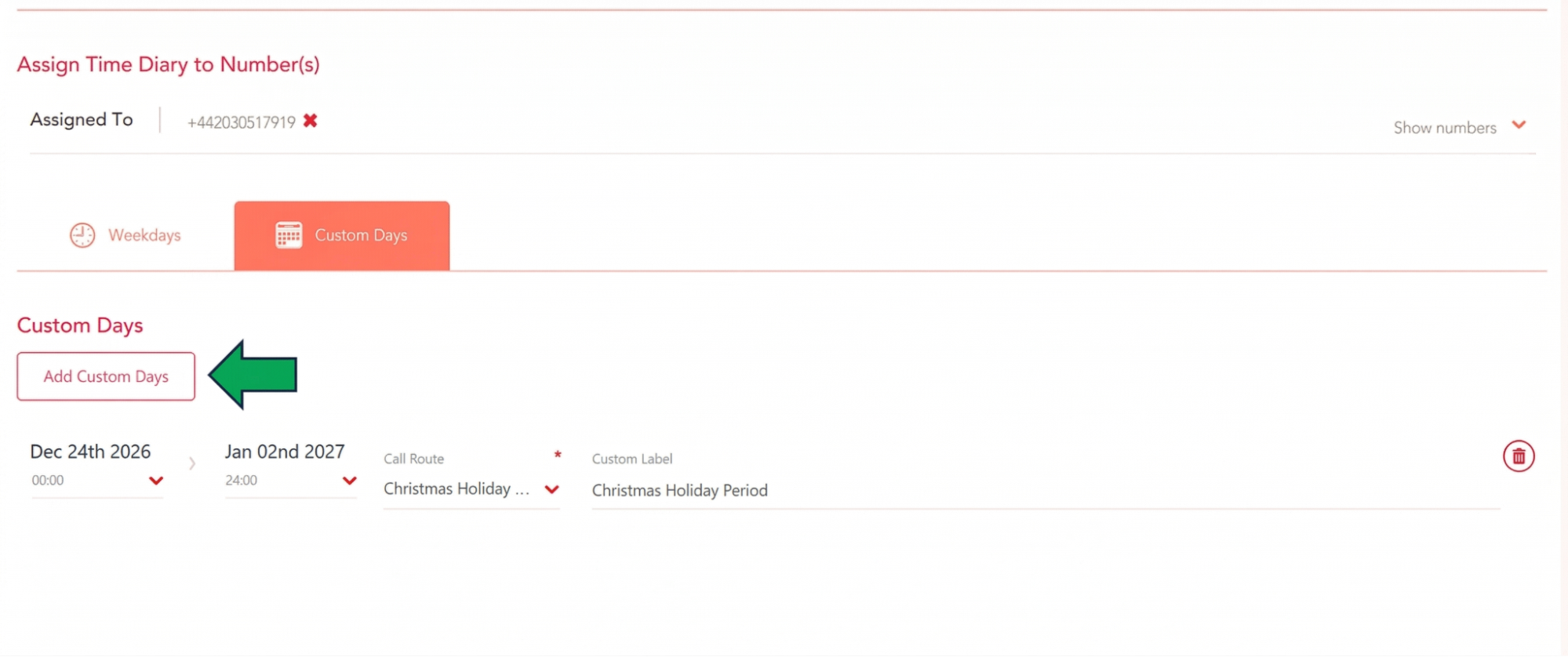
To set Public Holidays and any other additional days on the calendar that the business will be closed, switch to the Custom Days tab on your Time Diary.
As an example, if you want a dedicated holiday Call Route to be active during the Christmas and New Year period, you can set the days and times that you will be closed in the Custom Days area.
In the example below, the business will be Open Monday - Friday (9am-5pm) on Weekdays, but will be closing at 14:00pm on December 24th and reopening on January 2nd at 09:00am. The ‘Christmas Holiday Route’ will be the active Call Route during this time. Once the Days and Times have been set, click the Add to Diary button.
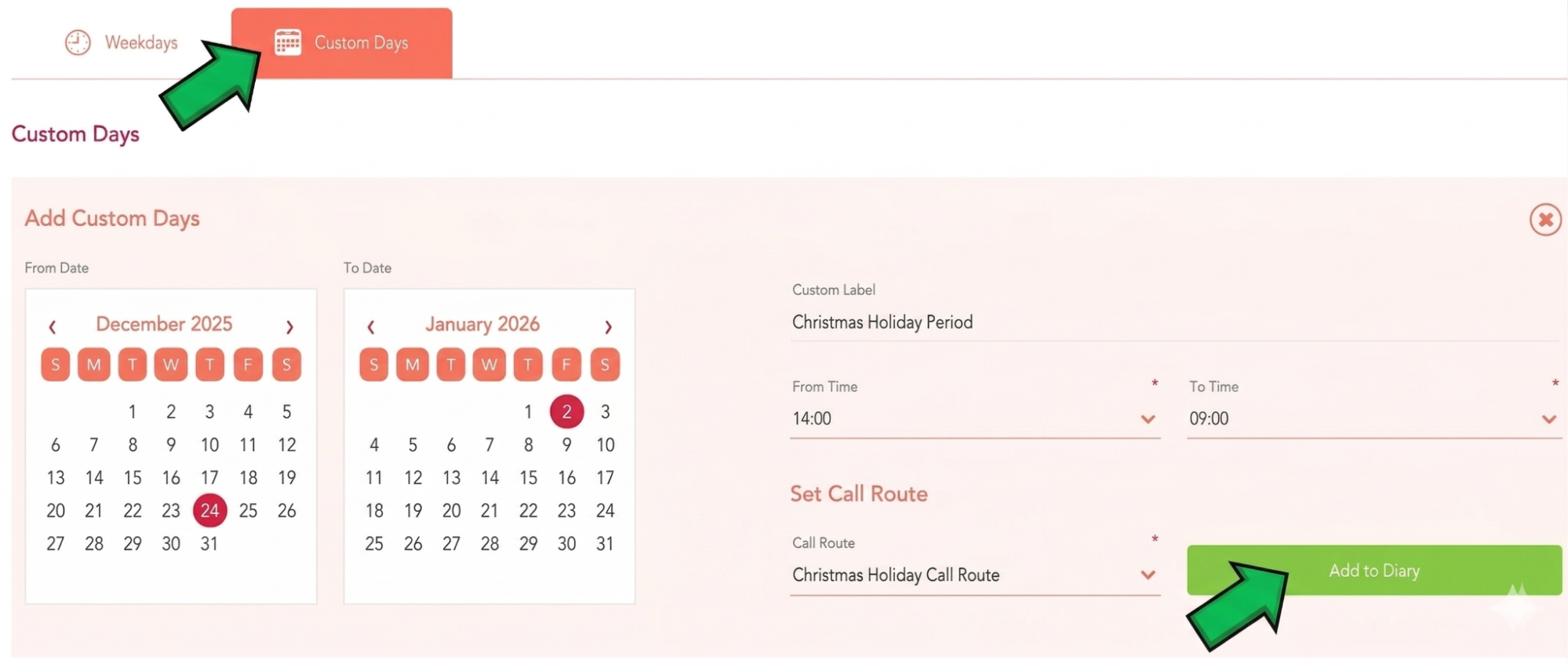
To add more Holidays to your Time Diary, click the Add Custom Days button again.
If you need any further help today, please don't hesitate to contact our friendly support team on 0330 122 6000 or by email!