How do I create a Call Queue?
Call Queues are useful in situations where multiple people may call the same number at the same time, and you wish to hold them in a queue until someone becomes available.
Callers will be held in their call order and Hunt Group members will be passed the calls as they become free.
You can choose a Ring Order to determine how you would distribute calls to queue members and set their ring duration. If a team member misses a call, you can specify how long to wait until you try to call a member again!
To create a Call Queue…
1. Click on the Voice button on the far-left of the screen
2. Select Inbound Settings from the Main Menu
3. Select Call Queuing from the sub-menu
4. Click the Create Queue button on the right
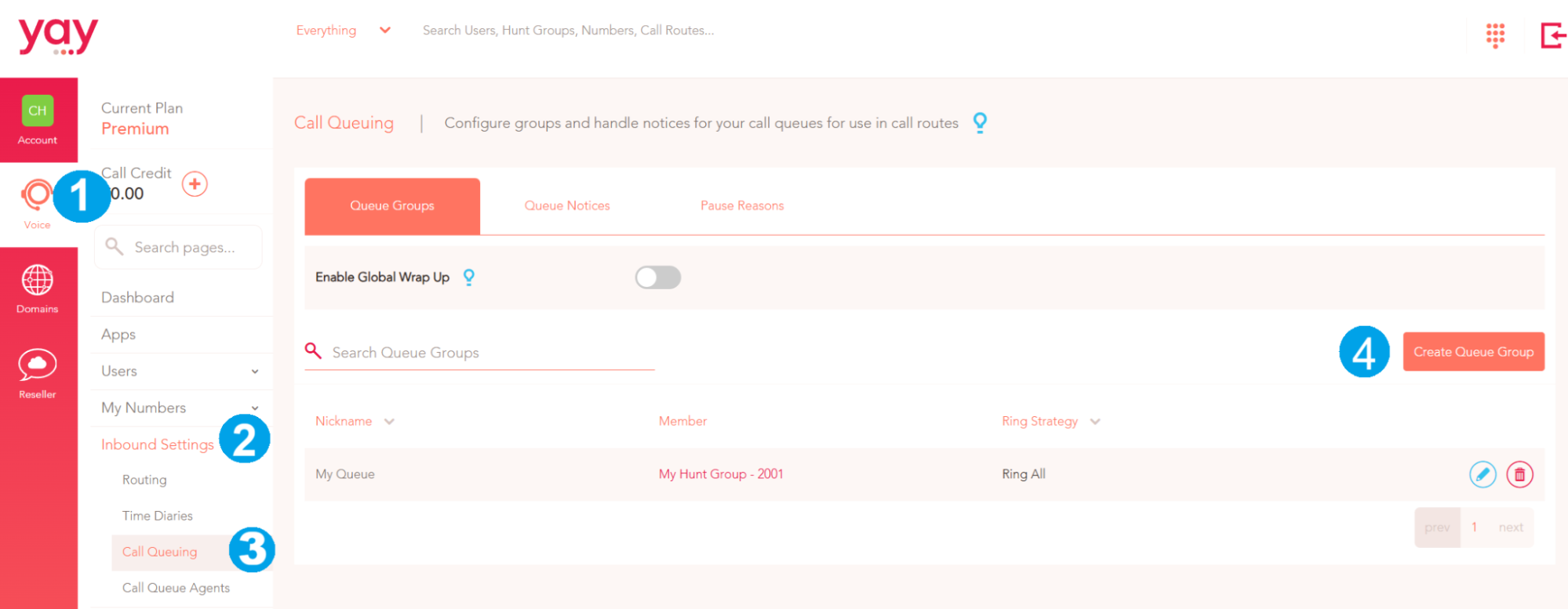
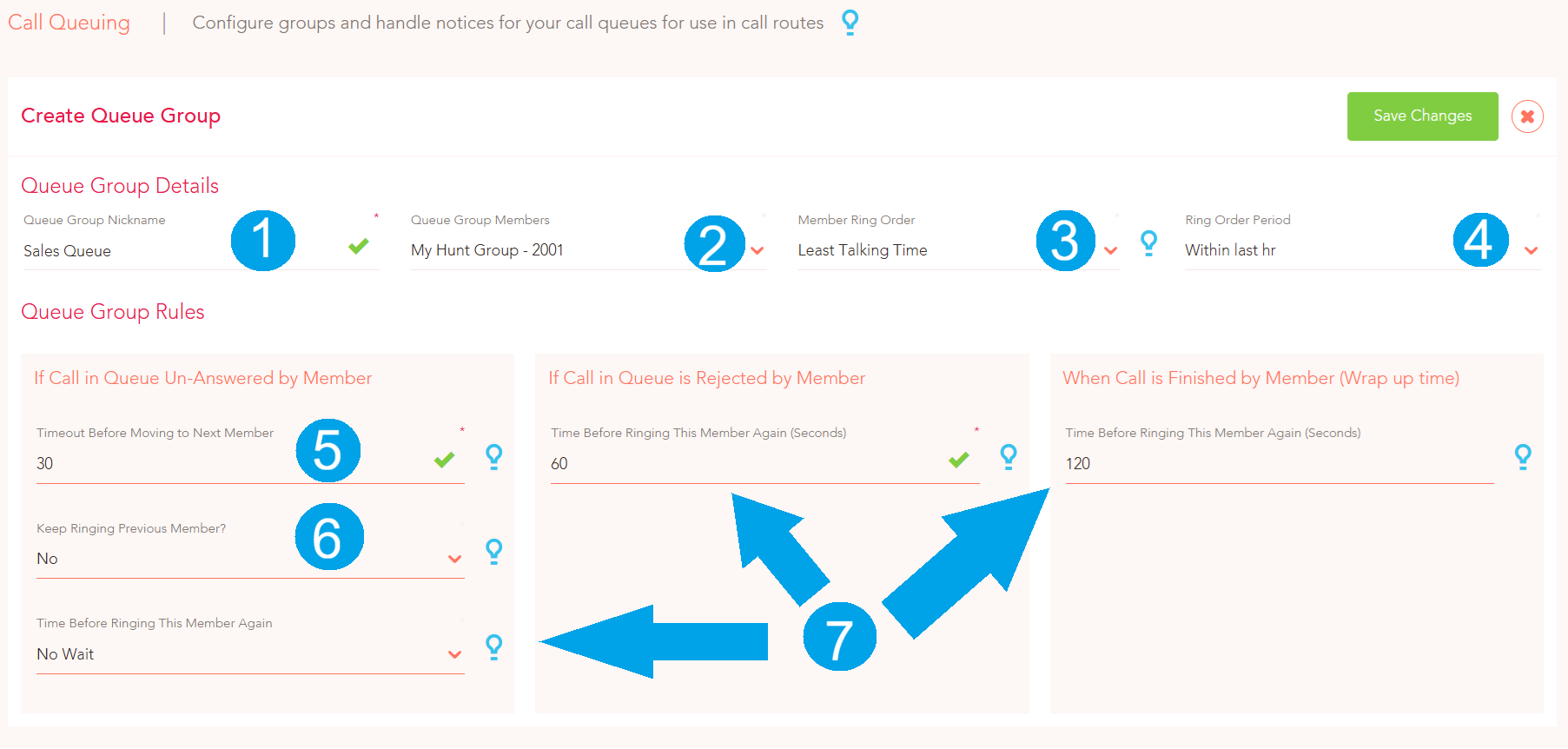
Now to configure your Queue details and Queue rules…
1. Queue Name - This can be any name to identify your Queue.
2. Queue Members - You can use this to select an already created hunt group or create one using the drop down.
3. Member Ring order - Please take a look at the Ring Order section at the bottom of this article to determine which order users should ring when a call is needing to be answered from the queue.
4. Ring Order period - This defines how long each ring order takes effect for (After the period of time set in the Ring Order Period expires, all stats taken into account for the Member Ring Order are reset).
5. Timeout before moving to the next member - This section determines how long a call will ring on a certain member before moving on.
6. Keep ringing previous member - Once the call has moved on and a new user is tried, this option determines whether to continue ringing the previous user at the same time as trying the new one. If set to Yes, two users will be ringing simultaneously to increase the chance of the call being answered.
7. Time before ringing this member again - Once a member has been tried and they were unable to answer, this will determine how long until they are tried again. This is also applicable for the ‘If Call in Queue is Rejected by Member’ and ‘If Call in Queue is Answered by Member’. The latter is essentially the call wrap-up time to determine how long members get between completing calls.
Ring Order options…
The call queue function has various ways to distribute calls to your queue members. The strategies that you can use are as follows…
Fewest calls - For each inbound call, it will call the user who has answered the least amount of calls before moving on (The time to move on is determined by the “Timeout before moving to next member”)
Least talking time - The duration of every phone call is recorded, and with this method it will call the person who has spent the shortest total duration of calls for that Ring Order Period - which is set in the box alongside.
Longest idle - The longest idle order will call the person who hasn’t answered a call for the longest time.
Ring all - This will ring all of the phones simultaneously while placing the caller in the queue. The “Timeout before moving to next member” and “Ring Order Period” options are not needed for this method.
Sequential (Across calls) - This Ring Order will call each user in the group in a Sequential manner, and each new call will move to the next member in the order.
Sequential (Restart each call) - This Sequential order will follow the same rules as the above, in that it will call each user in turn, before moving on to the next member. However, for each new call, it will start with the same user before moving on to the next.
Once a call queue has been created, you can direct calls to the call queue by using a Call Route. Please click on this guide on how to create a Call Route.
Please click this guide for information on how to add Queue Notices and announcements to play to callers whilst they are waiting for their call to be answered.
Please click this guide on how to add a Music Playlist.