How do I create a Conference bridge?
A Conference Bridge can be set up in order for a combination of internal or external users to dial into a conference room using an extension and pin of your choice. This can be done from the routing section in your Dashboard.
To create your first Call Route, follow these steps:
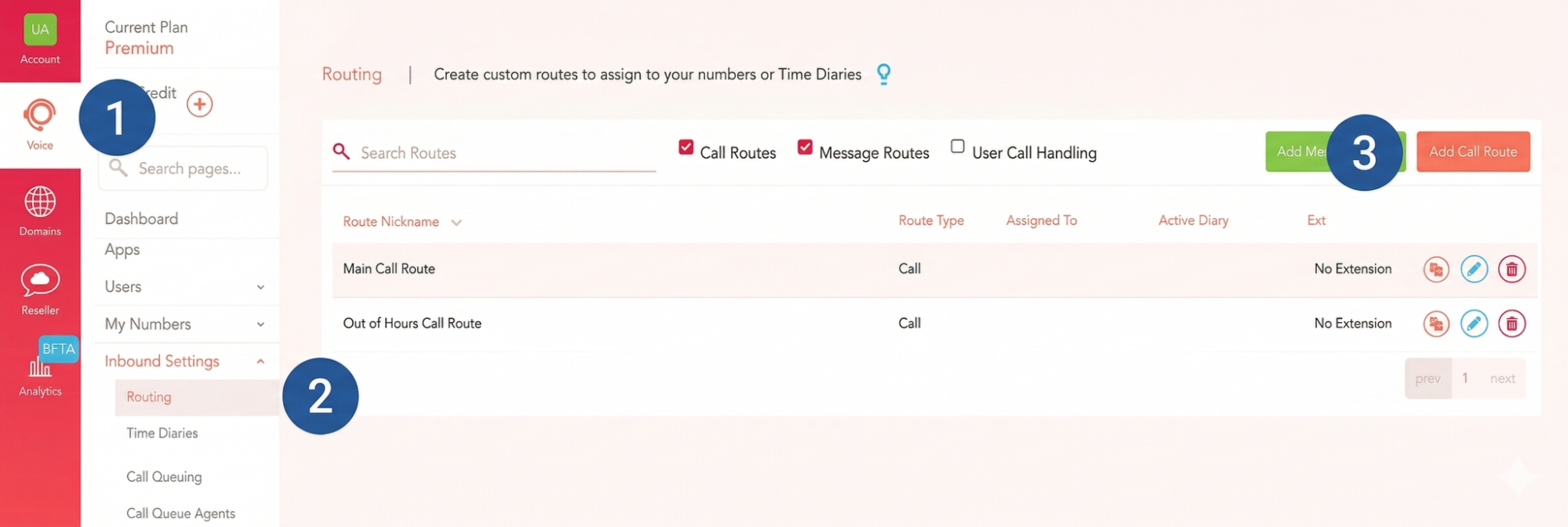
1. Navigate to the Voice tab on the left
2. Select Inbound Settings from the menu and then click on Routing
3. Click on the Add Call Route button
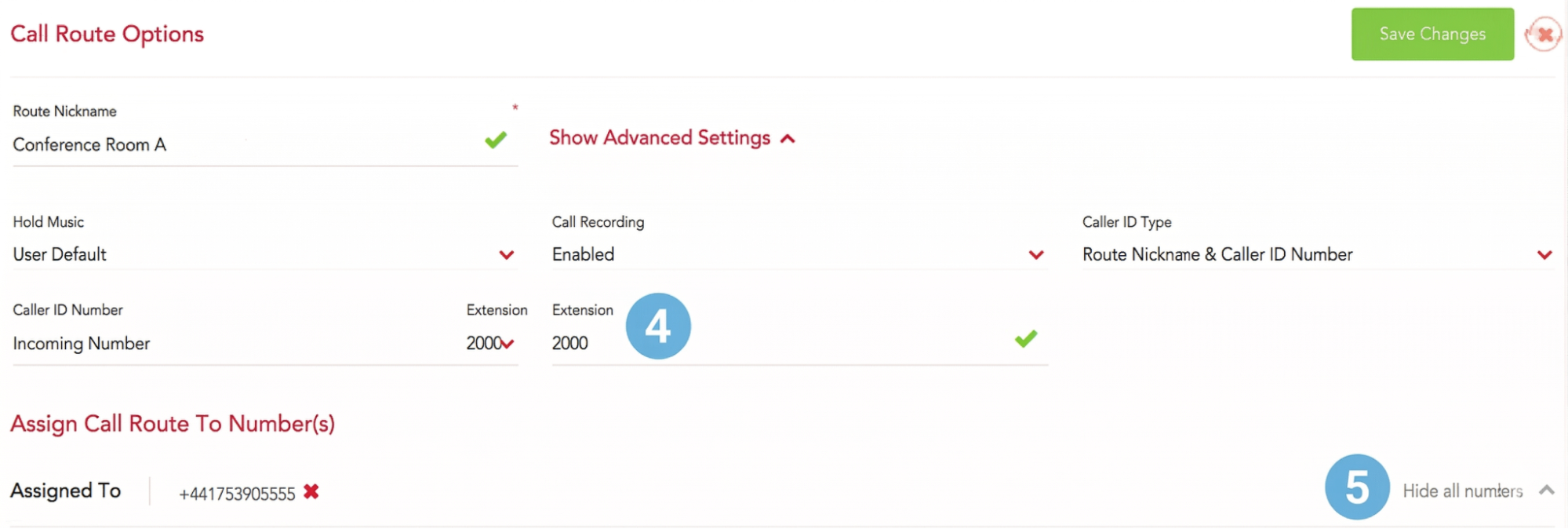
Open the Advanced Settings of your Call Route to set an Extension for the conference which internal Users can use to dial in (4). Then assign a Telephone Number to your Call Route (5). This is the number that external conference participants will dial to access the conference bridge.
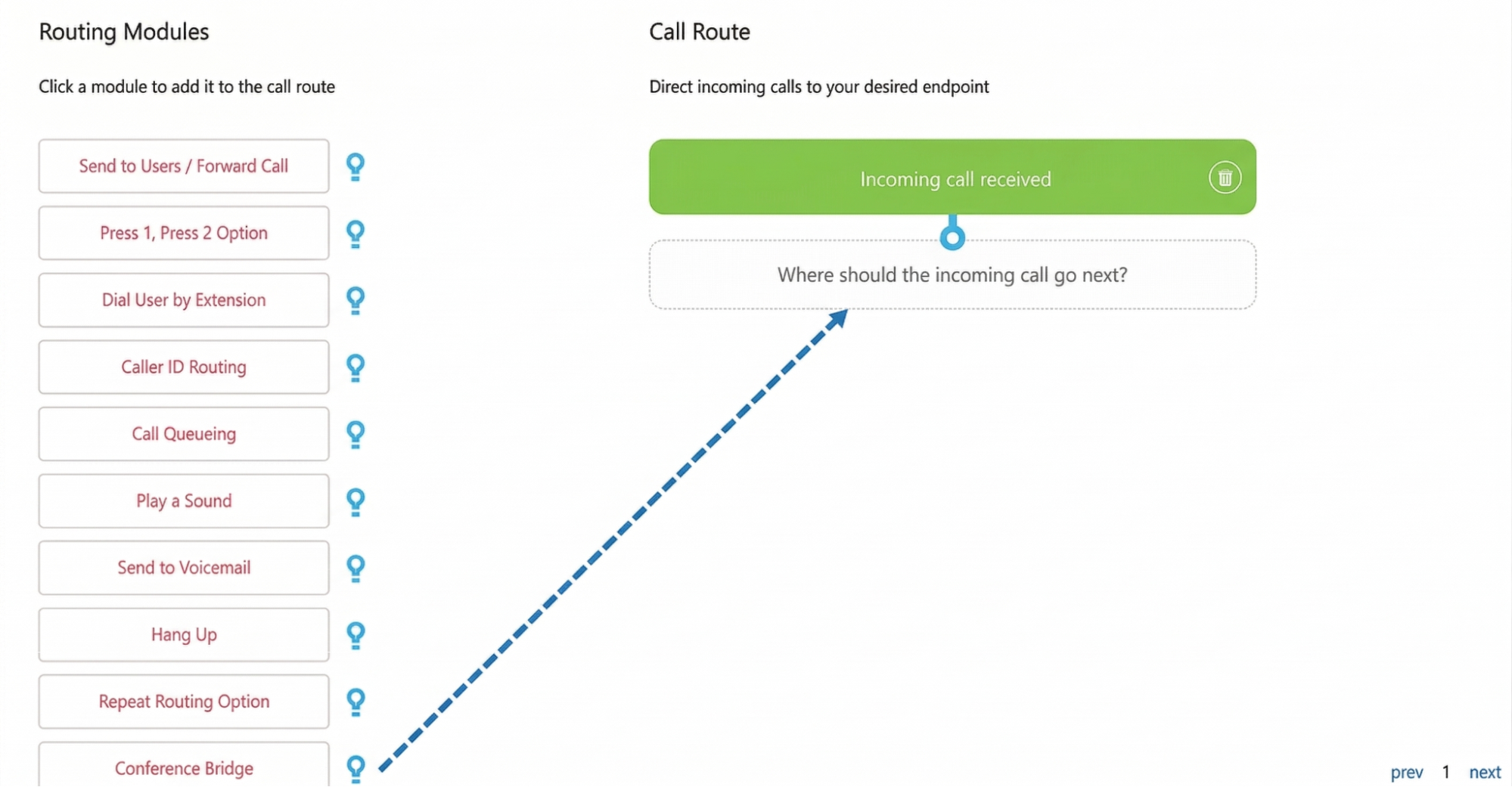
Scroll down and drag the Conference Bridge Routing Module and place into the ‘Where should the call go next?’ area of your Call Route - This is directly beneath the green ‘Incoming call received’ action.
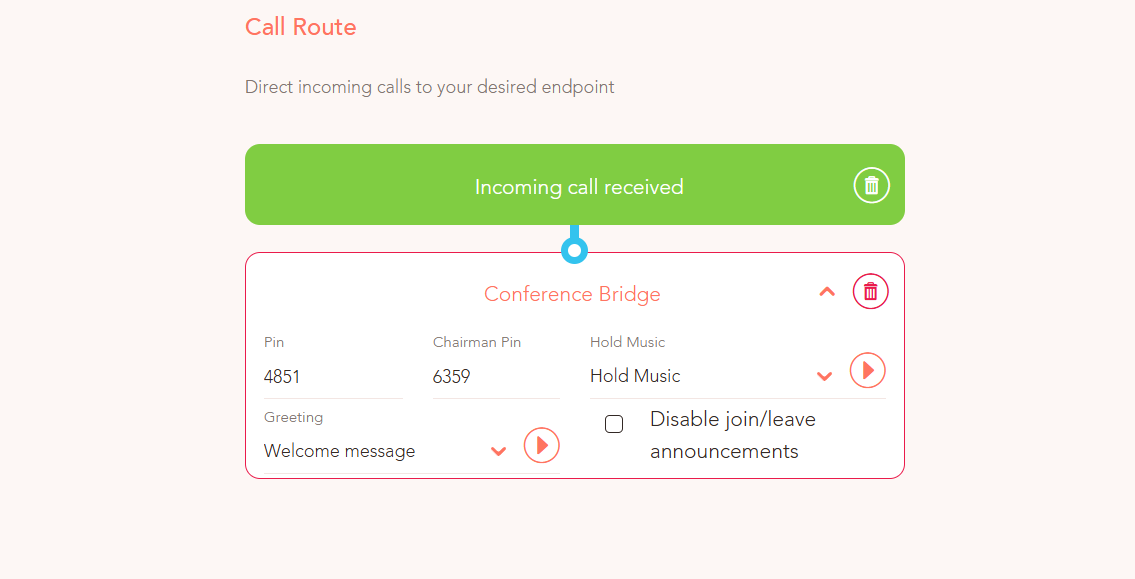
Once the Conference Bridge module has been added to your route, you can set the following options and then click the Add Route button in the top-right to save it…
PIN - This is the pin each user will have to enter before joining the conference (Enter a 4 digit number)
Chairman PIN - This is the pin the leader of the conference would enter before joining (Enter a 4 digit number different to the user pin)
Hold Music - Select the music participants will hear when they are the only one in the conference
Greeting - This is a pre-recorded audio file you can use to introduce your conference to those dialling in. This can be created in the audio section of the dashboard.
You can choose to have each user that dials in record their name and have it announced on their arrival. This will be disabled if you tick the box.